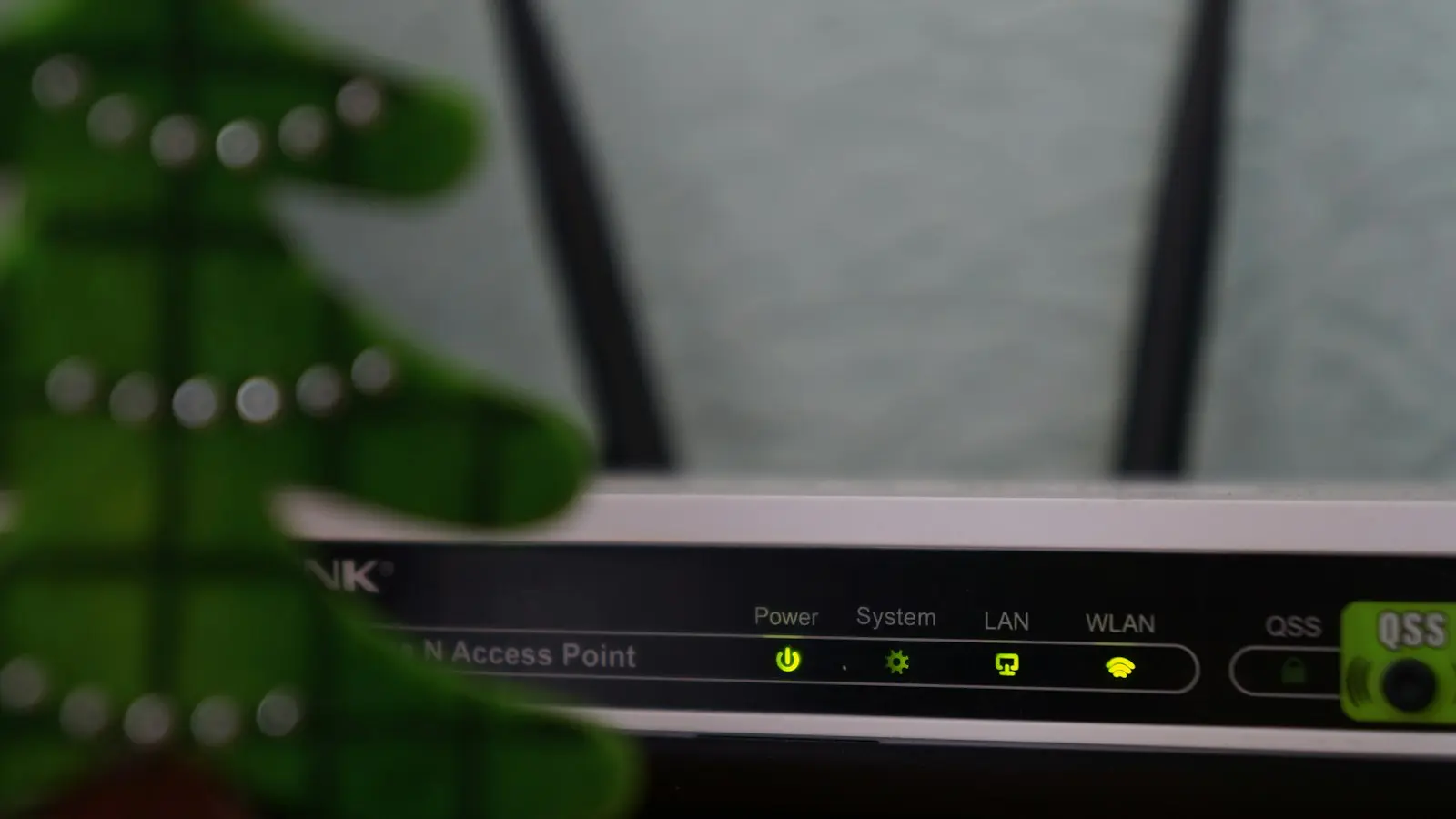
A router upgrade can leave phones and laptops working normally while older cameras, plugs, bulbs, printers, sensors, and appliances cannot connect. In most cases, this is not an internet outage. The new router has changed a Wi-Fi setting or behavior that the affected device does not support.
Key Takeaways
- If phones and computers work but selected smart-home devices fail, investigate Wi-Fi compatibility before resetting anything.
- Many older connected devices require 2.4 GHz Wi-Fi and may struggle with combined-band networks, band steering, or some mesh onboarding flows.
- WPA3-only security, hidden network names, guest-network isolation, and unsupported channel settings can prevent setup or local control.
- Use the strongest supported security configuration, and avoid weakening the whole household network for one legacy device.
- Document router settings and reset only the devices that still fail after lower-impact checks.
Confirm What Changed and Identify the Failure Pattern
Start by separating three problems that can look similar. If no household device can browse, stream, or use online services, troubleshoot the router’s internet connection, modem link, and service status first. If failures occur mainly in one distant area, router placement, mesh-node placement, or weak coverage may be the cause.
If modern devices work throughout the home while older or simpler connected products cannot find the network, complete setup, or remain connected, focus on compatibility. A router upgrade can change the available bands, security mode, channel selection, network visibility, and roaming behavior even when you reuse the old Wi-Fi name and password.
The failure stage provides useful clues:
- The device cannot see the network: Check whether it supports the available Wi-Fi band, whether the network name is hidden, and whether the 2.4 GHz settings are compatible.
- The device sees the network but rejects the password: Check the security mode, especially WPA3-only operation or a router’s transition-mode behavior.
- Setup fails partway through: Check the phone’s Wi-Fi connection, required app permissions, band steering, guest-network isolation, and distance from the router.
- The device joins but later drops offline: Check coverage, mesh roaming, firmware, power conditions, and whether the router is moving the device between networks or nodes in a way it cannot handle.
Before changing settings, record the router or mesh model, firmware version, network names, security mode, mesh-node locations, and any migration options used during installation. Matching the old network name and password can help a device reconnect, but it does not recreate the old wireless environment.
Check the documentation for the exact device model as well. Its supported bands, security requirements, setup procedure, and firmware path matter more than assumptions about its category. Not every smart-home device is limited to 2.4 GHz, and WPA3 does not cause every older device to fail.
Check 2.4 GHz Compatibility Before Blaming the Device
Many smart-home devices support 2.4 GHz Wi-Fi but not 5 GHz or 6 GHz. Phones and newer laptops usually support multiple bands and switch between them with little intervention. A lower-cost plug, camera, sensor, or appliance may have a simpler radio that can join only 2.4 GHz.
Modern routers often combine 2.4 GHz and 5 GHz under one network name, or SSID. That is convenient for capable devices because the router can guide them toward a suitable band. But a 2.4 GHz device setup may fail when the device or its companion app cannot handle a combined network cleanly during onboarding.
This behavior is often tied to band steering. Band steering helps routers direct compatible devices toward a faster or less congested band. It is useful for modern equipment, but it adds another layer of decision-making that some older devices and setup apps do not manage well.
Check your router or mesh system’s official documentation for one of these options:
- Separate names for the 2.4 GHz and 5 GHz networks
- An IoT-specific network
- A temporary 2.4 GHz setup or onboarding mode
- A supported way to pause band steering while adding a device
The labels vary by manufacturer, so do not rely on generic menu instructions. If the device maker recommends it, connect your phone to the visible 2.4 GHz network before retrying setup.
Keep 5 GHz and 6 GHz enabled for hardware that supports them. Disabling newer bands across the household is usually an unnecessary trade-off when a separate 2.4 GHz or IoT option can solve the smart home Wi-Fi problem.
A mesh router disconnects issue can also resemble a band mismatch. During setup, place the phone and affected device near the primary router or a nearby stable mesh node. This helps rule out weak signal, node handoffs, and roaming behavior before you change security or reset the device.
Match Security, Network Visibility, and Router Settings
Router WPA3 compatibility is another common checkpoint after an upgrade. WPA3 is a newer Wi-Fi security standard, but some older smart-home devices do not support it. A device may detect a WPA3-only network yet fail when it attempts to join.
Some routers provide a WPA2/WPA3 transition mode, sometimes called mixed mode. This can allow WPA2-capable and WPA3-capable devices to share a network, but behavior depends on the exact router and device. Verify the supported security modes in both manufacturers’ documentation before making a permanent change.
Use the strongest security setting supported by the devices you need to retain. Do not permanently reduce security on the main household network just to accommodate one aging product. If a temporary compatibility setting helps confirm the problem, document the change and restore stronger protection where possible.
Network visibility can matter too. Some device setup flows expect a visible Wi-Fi name and may not reliably handle a hidden SSID. If the device cannot find a known network, confirm that the setup network is broadcasting its name.
Guest networks can create a separate problem. They may isolate connected devices from phones and computers on the primary network. If a setup app needs to communicate locally with a camera, printer, hub, or plug, client isolation can prevent pairing or local control even though the device appears online.
An IoT network can be a sensible long-term arrangement if it keeps less-trusted devices separate without blocking the local connections they require. Guest-network and isolation rules vary by router, so verify the actual behavior of your system rather than assuming every guest or IoT network works the same way.
Finally, inspect 2.4 GHz channel settings if your router exposes them. Automatic selection is often appropriate, but some legacy devices have narrower channel support than current phones and laptops. Use a configuration supported by the router and device makers; no single channel is a universal fix for IoT Wi-Fi troubleshooting.
Use an Ordered Recovery Checklist That Avoids Unnecessary Resets
Work through these steps in order to limit disruption:
-
Confirm general internet access. Test several ordinary devices. If they are also offline, resolve the modem, router, or service problem first.
-
Identify the failure stage. Note whether each affected device cannot see the network, rejects credentials, fails during setup, disconnects later, or loses local app control.
-
Check device requirements. Confirm the device’s supported Wi-Fi band, security mode, visible-SSID requirement, and recommended setup process for that exact model.
-
Review current router settings. Verify the active band configuration, security mode, guest-network isolation, and available IoT or onboarding options. Do not assume a migration wizard preserved all relevant conditions.
-
Update supported software and firmware. Install available updates for the router or mesh system, control app, and device where the manufacturer provides a supported path. Updates may resolve compatibility bugs, but they cannot overcome an unsupported Wi-Fi band or security mode.
-
Rule out weak signal. Move the device and phone closer to the main router or stable mesh node during setup. This is particularly important for battery-powered sensors and cameras at the edge of coverage.
-
Check the phone and app. Connect the phone to the intended local Wi-Fi network. Grant the permissions needed for the setup method, which may include local-network, Bluetooth, location, or nearby-device access depending on the operating system and product.
-
Retry on compatible 2.4 GHz Wi-Fi. Use a visible dedicated 2.4 GHz SSID, supported IoT network, or temporary onboarding mode when available and recommended.
-
Compare hidden differences. If you reused the old Wi-Fi name and password, compare WPA3 settings, SSID visibility, channel behavior, guest isolation, band steering, and mesh-node placement. Credentials alone do not guarantee compatibility.
-
Factory-reset only the remaining problem device. Record its existing details first, reset one device at a time, and confirm that it remains stable before moving to the next one.
This sequence prevents the common mistake of resetting every bulb, plug, and camera when one router setting is responsible for the failure.
Choose a Secure Long-Term Fix or Escalate With Useful Evidence
The best long-term fix is usually a maintained configuration that supports both newer hardware and the older devices you genuinely need. Depending on the router and device, that may be a dedicated 2.4 GHz-capable IoT network, a supported WPA2/WPA3 configuration, or a router-specific IoT setting that leaves the primary network on stronger defaults.
Avoid turning a Wi-Fi compatibility issue into a broader security problem. Do not expose smart-home devices directly to the public internet, disable router firewall protections, enable broad remote administration, or use obsolete wireless security solely to keep one device online. If a device requires those workarounds, replacing unsupported hardware may be the safer option.
When contacting router or device support, provide details that help isolate the problem: router and mesh model, firmware version, device model, app version, exact failure stage, Wi-Fi band, security mode, whether the SSID is visible, channel setting if available, mesh-node location, and the exact error message. This makes it easier to distinguish a compatibility limitation from a coverage or setup issue.
FAQ
Can a device connect to Wi-Fi if it supports only 2.4 GHz?
Yes. It needs a compatible 2.4 GHz network and settings it supports. If setup fails on a combined 2.4 GHz and 5 GHz network, use a supported separate SSID, IoT network, or temporary onboarding option.
Does WPA3 cause older smart-home devices to disconnect?
It can be a factor if the device does not support WPA3 or does not work correctly with the router’s transition mode. Confirm both products’ documented requirements before changing security settings, and avoid leaving the main network on a weaker mode unnecessarily.
Should I factory-reset every smart-home device after replacing my router?
No. First check the Wi-Fi name and password, 2.4 GHz availability, security mode, signal, mesh placement, guest-network isolation, and app permissions. Reset only the affected device after those lower-impact checks have failed.