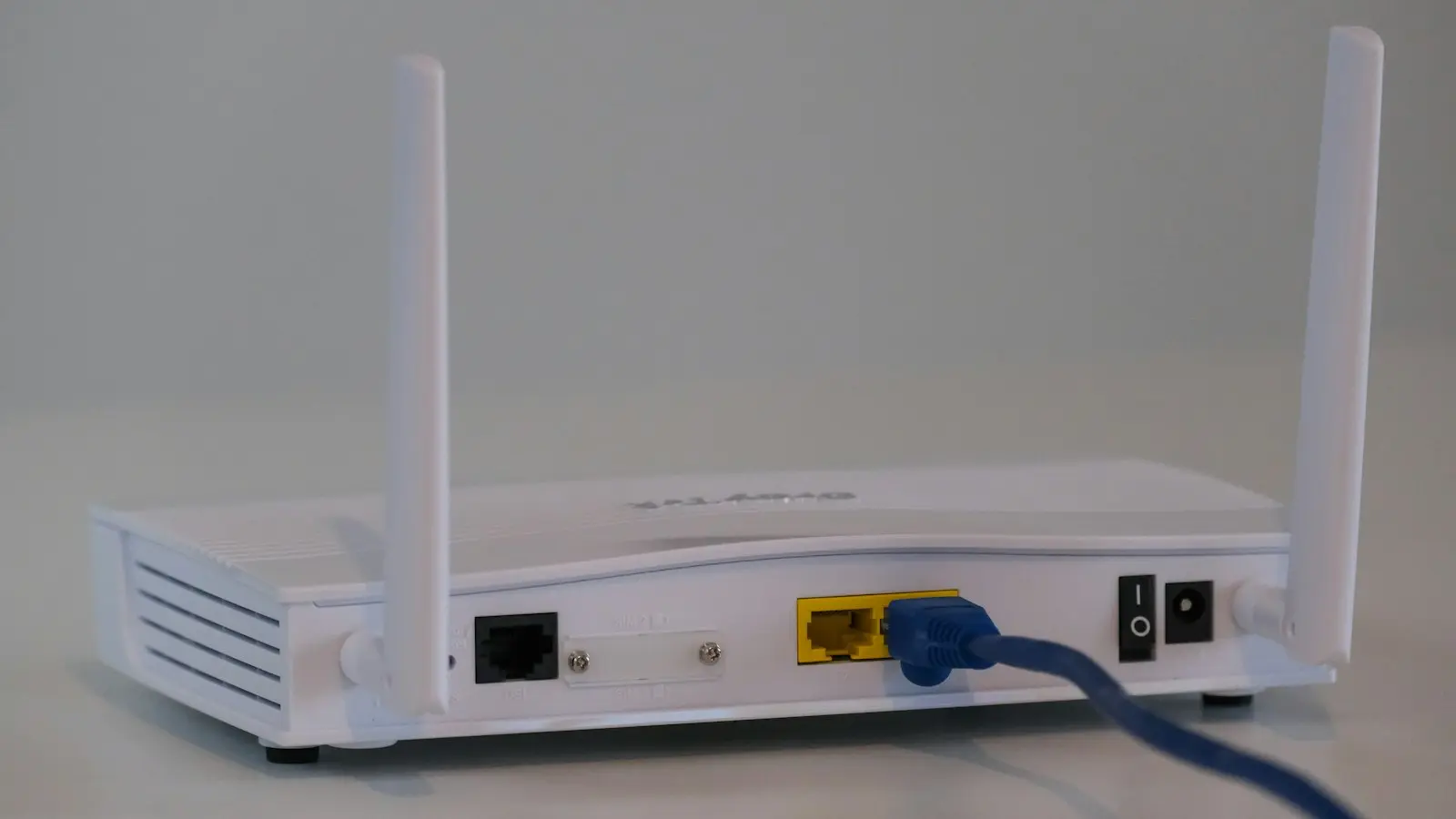
If your Wi-Fi slows at night but works normally during the day, the cause is usually one of four things: peak-time demand from your provider or neighborhood, several devices using your connection at once, a local Wi-Fi problem, or a single device behaving badly. The fastest way to identify the cause is not to buy a new router first. Test the wired internet connection and the wireless network separately at the same times.
A reliable diagnosis should compare daytime and evening results, show whether every device is affected, and distinguish low speed from high latency, packet loss, or weak wireless coverage.
Key Takeaways
- Test with Ethernet and Wi-Fi separately to determine whether the problem is the broadband connection or the wireless network.
- Compare results at similar daytime and evening times across several days instead of relying on one speed test.
- Check streaming, backups, updates, gaming downloads, security cameras, and video calls before changing hardware.
- A mesh system can improve coverage, but it cannot fix a provider-side slowdown or increase broadband capacity.
- Collect wired test results and modem or router status information before contacting your internet provider.
1. First, Separate a Slow Internet Connection From Slow Wi-Fi
“Internet speed” and “Wi-Fi speed” are related but not identical. Broadband is the connection entering your home through the modem or gateway. Wi-Fi is the wireless link between that equipment and a phone, laptop, television, or other device.
That distinction matters because a wireless speed test can be slow even when the broadband service is performing normally. A distant room, thick wall, crowded radio channel, poor router placement, or overloaded router can limit the wireless connection. Conversely, strong Wi-Fi can still deliver a poor experience if the provider connection is congested or unstable.
Run two tests if your equipment and computer support them. First, connect a computer to the router or gateway with Ethernet and test close to the equipment. Then run a wireless test from the room where buffering or lag usually occurs. Repeat both tests during a normal daytime period and during the evening slowdown.
Use the same device where possible, the same testing service, and similar conditions. Stop large downloads during the test unless you are specifically checking how the connection behaves under household load. A test result is not a guarantee of the plan’s advertised speed; results can vary with the test server, device, Ethernet link, browser or app, and other traffic.
Keep a simple log with these details:
- Date and exact time
- Device used
- Room or location
- Wired or wireless connection
- Download speed
- Upload speed
- Latency or ping, if shown
- Whether calls, games, or streaming were affected
- Whether one device or the whole household was affected
The pattern is more useful than one number. If wired and wireless results both worsen at night, investigate provider-side congestion, a line or modem problem, or heavy household usage. If wired performance stays stable while wireless performance falls, focus on coverage, interference, router placement, or router capacity. If only one device struggles, troubleshoot that device before changing the entire network.
2. Check Peak-Time Congestion and Household Bandwidth Demand
A slow internet evening can result from more people using the provider’s network at the same time. Evening demand often rises as households stream video, play online games, join calls, browse, and download files. The severity and timing vary by provider, access technology, location, plan, and local network design, so a slowdown at a particular hour is a clue rather than proof of congestion.
Compare wired tests across several days. Test at roughly the same daytime and evening times, and note whether the drop affects download speed, upload speed, latency, or all three. A repeatable evening decline on a wired connection is stronger evidence of a broadband-side issue than a single wireless result.
Also inspect what is happening inside your home. Several ordinary activities can compete for capacity:
- Multiple high-resolution video streams
- Game downloads and console updates
- Cloud photo or computer backups
- Security-camera uploads
- Video calls
- Operating-system and app updates
- Large file transfers
- Smart televisions and other connected devices downloading content
Upload demand deserves special attention. A cloud backup or camera upload may not use much download capacity, but it can consume limited upload capacity and increase latency. That can make video calls, online games, and web browsing feel unreliable even when a download test looks acceptable.
As a diagnostic step, pause one large transfer or reschedule an update and see whether the experience improves. If stopping a backup fixes evening calls, the issue may be household capacity rather than neighborhood congestion. That does not mean you must permanently disable useful services; scheduling them outside busy periods or applying traffic limits may be enough.
A faster plan can provide more headroom, but it does not automatically eliminate delay or instability. The connection can still struggle because of wireless interference, a saturated upload, faulty equipment, or a provider-side fault.
3. Troubleshoot Router Placement, Wireless Interference, and Device Limits
If wired performance is stable but wireless performance falls, compare a test beside the router with one in the problem room. A major difference suggests coverage or radio conditions rather than a basic broadband-speed problem.
Place the router in an open, central, elevated position where practical. Avoid enclosing it in a cabinet or placing it behind large objects, near metal, or beside equipment that may produce radio interference. Thick walls, floors, mirrors, and building materials can reduce performance, particularly at longer distances.
The Wi-Fi band also affects the result. The 2.4 GHz band generally travels farther and penetrates obstacles better, but it is often more crowded. The 5 GHz band can provide better local performance and more available capacity, but its useful range is usually shorter. Newer bands and Wi-Fi standards may improve capacity or efficiency, but compatible devices and favorable conditions are still required. A label such as Wi-Fi 6 or Wi-Fi 7 is not a promise of a specific speed throughout your home.
Use the router’s automatic channel selection or diagnostic tools when available. A manual channel change can help when nearby wireless networks compete for the same radio space, but it is not a universal fix. Nearby networks, household electronics, channel width, client compatibility, and the router’s own behavior all affect the outcome. If the router manages channels automatically, changing settings without understanding them may make performance less consistent.
Check for firmware updates and review the router’s status page for warnings, excessive CPU or memory use, overheating, or frequent disconnections. Some routers also show connected devices and traffic usage, which can reveal an unexpected download or upload.
A reboot is reasonable when the issue may be temporary. It can clear a transient software fault or restore a connection that has become stuck. It will not fix recurring provider congestion, poor coverage, a saturated household connection, or a damaged line. Reboot the router using its normal controls or power procedure, and avoid a factory reset unless you are prepared to recreate the configuration and have saved the required information.
4. Decide Whether a Mesh System or Hardware Change Fits the Evidence
A mesh system can make sense when the broadband connection is stable and the problem is limited to distant rooms, dead zones, or consistently weak wireless results. Mesh nodes can provide better coverage than a single router when they are placed where they receive a strong signal from the main unit.
Mesh is unlikely to solve the problem when wired speed also collapses at night, the modem repeatedly loses synchronization, or several devices fail at the same time regardless of location. A mesh system distributes Wi-Fi; it does not create more capacity in the provider’s network or repair a faulty broadband line.
There are trade-offs. A wireless mesh node uses some available radio capacity to communicate with the main unit, known as wireless backhaul. A node placed in the weak-signal room may simply repeat a weak connection. Building materials, node placement, client steering, and interference can affect the result. Ethernet backhaul, where available, can avoid some of these limitations but may require cabling.
Before buying hardware, try lower-cost tests. Move the existing router, connect a stationary television or game console by Ethernet, pause background transfers, update firmware, and test performance close to the router. If the problem disappears near the router, coverage is a stronger suspect. If it remains on a wired connection, an extender or mesh system is probably the wrong first purchase.
The same caution applies to replacing an older router. Age alone does not prove that equipment is the cause. Replace or upgrade when testing shows a capacity, compatibility, coverage, security-support, or reliability problem—not simply because a newer model exists.
5. Know What Evidence to Collect Before Contacting the Provider
Contact your internet provider when wired tests repeatedly show a substantial evening decline, multiple devices are affected at once, the modem reports errors or loses synchronization, or the problem continues after you have excluded household traffic and local Wi-Fi conditions.
Give the provider a concise record rather than a general complaint that the Wi-Fi is slow. Include several dates and times, wired and wireless results, latency where available, the affected devices, the test location, and what changed between normal and problem periods. Note whether rebooting temporarily helped and whether the modem or gateway showed warning lights or status errors.
Ask the provider to check the line, modem or gateway status, local service conditions, maintenance, plan limits, and any documented congestion or traffic-management policy. Providers may define advertised speeds and peak performance differently, so ask how your plan is measured and what results they expect from a wired test.
Do not conclude that the provider is throttling a particular service based on one test. Routing, test-server distance, VPN capacity, congestion, and the service’s own servers can all change results. Repeated controlled tests and provider diagnostics are more useful than speculation.
Protect your account while collecting evidence. Do not post Wi-Fi passwords, router administrator credentials, public IP details, or screenshots containing account information. Share relevant status information only through the provider’s official support process.
FAQ About Nighttime Wi-Fi Slowdowns
Why is my internet slow at night but normal during the day?
The cause may be peak demand on the provider’s network, several household activities competing for capacity, or local Wi-Fi interference that becomes more noticeable when more devices and nearby networks are active. Compare wired and wireless tests at matched daytime and evening times before deciding which explanation fits.
Will changing the Wi-Fi channel or restarting my router fix the problem?
A channel change may help when nearby wireless networks are competing for the same radio space, while a reboot can clear a temporary router or connection fault. Neither step fixes a recurring wired speed drop, a weak provider line, or insufficient household bandwidth. Treat both as controlled troubleshooting steps, not guaranteed solutions.
Will a Wi-Fi extender or mesh system fix evening buffering?
It can help when buffering is caused by weak coverage or a dead zone and wired performance remains stable. It will not increase the capacity of your broadband plan or solve a provider-side evening slowdown. Test near the router and over Ethernet first so you know whether coverage is actually the failing part.
The key question is not simply why Wi-Fi slows at night. It is where the slowdown begins: the provider connection, your household traffic, the wireless network, or one device. Separating those layers can prevent unnecessary upgrades and give you useful evidence if professional support is needed.