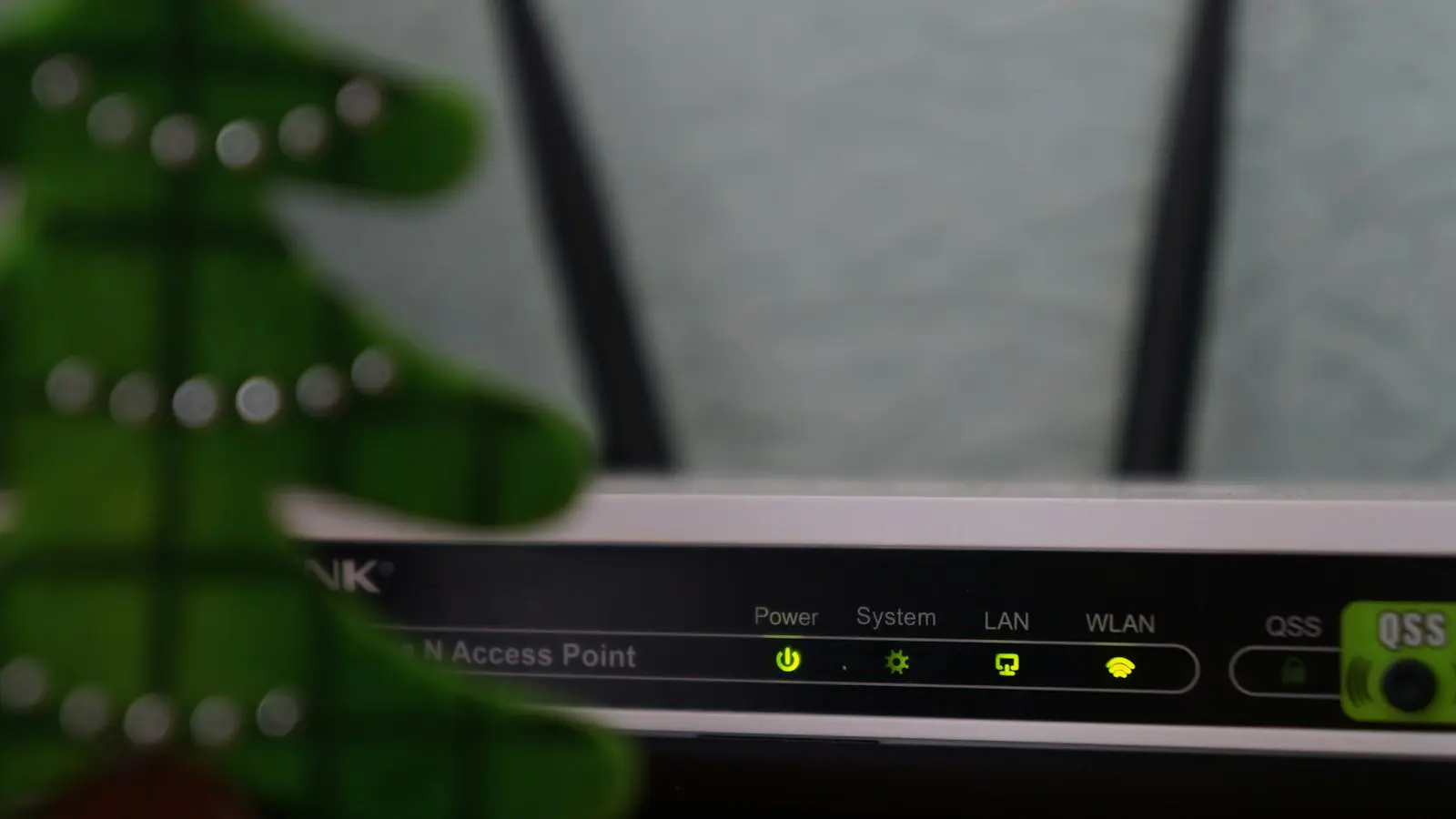
If your Wi-Fi is slow at night but normal during the day, the cause is usually one of four things: more activity inside your home, increased wireless interference, a router or equipment limitation, or congestion on your internet provider’s network. The timing is a useful clue, but it is not proof of an ISP problem.
The fastest way to find the real cause is to compare the same connection at different times, on multiple devices, in different locations, and—if possible—over Ethernet. That separates a weak wireless connection from a slow broadband service and gives you useful evidence before you contact your provider.
Key Takeaways
- Test more than one device and compare the same locations during daytime and evening hours.
- Use Ethernet, when possible, to distinguish a Wi-Fi problem from a broader broadband slowdown.
- Check scheduled backups, downloads, cameras, updates, and other household activity before changing router settings.
- Move the router, test a supported band, and check firmware before replacing equipment.
- Contact your ISP with a repeatable test log if wired and wireless connections deteriorate together at night.
1. First determine whether the problem is Wi-Fi or the internet connection
“Wi-Fi speed” and “internet speed” are related but different. Wi-Fi is the wireless connection between your device and router. Your internet connection is the broadband service running from the router or modem to your provider’s network. A problem with either link can make streaming, browsing, gaming, or video calls feel slow.
Start by testing at least two devices during the evening slowdown. For example, compare a phone near the router with a laptop in the room where the problem is most noticeable. If only one device struggles, the device itself, its wireless hardware, background activity, or its location may be responsible. If several devices slow down in the same area, the wireless environment becomes more suspicious.
Repeat the same checks during a faster daytime period. Use the same devices and, as closely as practical, the same locations. Note whether the problem affects all activities or only one service. Streaming trouble on a television, for example, does not by itself establish that the router or ISP is failing; the television may have a weaker antenna, an outdated app, or a poorer connection than other devices.
Also test in the same room as the router. If performance is good nearby but poor through walls or on another floor, the likely issue is coverage, signal quality, interference, or device placement rather than provider capacity. If performance is poor even beside the router, continue with a wired comparison if you can.
2. Check whether household activity is using the available capacity
Evening slowdowns often begin when several people and devices use the connection at the same time. Common examples include multiple video streams, cloud photo backups, game downloads, operating-system updates, video calls, security cameras uploading footage, and smart-home devices sending data.
The issue is not always one unusually demanding device. Several moderate activities can compete for the same download or upload capacity. Upload use is especially easy to overlook: cloud backups, camera recordings, video calls, and large file transfers can affect responsiveness even when nobody is downloading a large file.
Look for activities that start on a schedule. A computer may back up photos every evening, a console may download updates automatically, or a camera system may upload more footage when people return home. Router or device dashboards may show connected devices and current usage, but menu names and available information vary by model and firmware.
Test one suspected activity at a time. Pause a game download, delay a backup, or temporarily stop a large upload, then repeat the evening test. Changing only one variable makes the result more useful. Turning off every device at once may make the connection appear better, but it will not tell you which activity caused the problem.
Avoid relying on universal bandwidth figures. The effect of streaming or video calls depends on the service, quality setting, number of simultaneous users, device behavior, and the capacity of your connection. The practical question is whether performance improves consistently when a specific activity is paused.
3. Test for router placement, interference, and band-related problems
A router’s location can make an evening-only problem more noticeable. People may move into rooms farther from the router at night, close doors, use a different floor, or connect more devices in areas where the signal is already weak. Walls, floors, cabinets, large appliances, and other obstructions can reduce wireless performance.
Move the router, if possible, to an open and reasonably central position rather than leaving it inside a cabinet or behind large objects. Keep the change reversible and test again before making more involved adjustments. A better location can improve coverage, but it will not fix a provider-side slowdown that also appears over Ethernet.
Most home routers support more than one wireless band. The 2.4 GHz band generally travels farther and can work better through some obstacles, but it may be busier because many nearby networks and household devices use it. The 5 GHz band often provides more capacity at shorter range, though walls and distance can reduce its performance. Some newer routers and devices support additional bands, but compatibility depends on the specific equipment.
Do not assume that the newest band is automatically best, or that every device supports it. Test a supported alternate band if your router presents separate network options, but avoid changing advanced wireless settings without understanding what they do. A device that connects successfully is not necessarily receiving good real-world throughput.
Nearby networks can also contribute to interference, particularly in apartments or densely populated areas. Neighboring networks may be busier in the evening, when more people are home. Basic placement and band tests are safer starting points than blindly selecting channels or changing technical settings.
Check whether the router is unusually hot, running old firmware, or several years behind current Wi-Fi capabilities. Firmware updates can address reliability problems, but they do not guarantee faster service. Equipment age matters most when the router has limited coverage, poor support for your devices, frequent restarts, or difficulty handling the number of connections in your home.
4. Use a repeatable test log to separate a local problem from peak-hour slowdown
A wired Ethernet test is one of the most useful comparisons. Connect a computer directly to the router with Ethernet, pause major household downloads if practical, and run the same test you use over Wi-Fi. Then compare the result with a wireless test from the same general location and at the same time.
If Ethernet works well while Wi-Fi remains slow, the problem is more likely to involve wireless coverage, interference, the router’s radio, or the device’s Wi-Fi hardware. If both Ethernet and Wi-Fi slow down together, the router, modem, line, account, or ISP connection becomes more relevant. Ethernet helps isolate the wireless link, but it is not a perfect diagnosis: the cable, computer, router port, modem, and test server can also affect the result.
Run tests at multiple times rather than treating one number as proof. Record the date, approximate time, device, location, connection type, download speed, upload speed, and latency or general responsiveness. Also note what was happening in the home, such as a cloud backup, game download, video call, or several active streams.
Use the same device and test location for the clearest comparison. Speed-test servers, browser and app behavior, device capability, temporary traffic, and the route between your provider and the test server can all influence the result. A test is a snapshot, not a complete measurement of every service you use.
Include real-world observations in the log. Write down whether a video call freezes, a website takes longer to respond, a game becomes unresponsive, or a stream repeatedly lowers quality. These details help because a high download result does not necessarily rule out latency, upload saturation, or intermittent disconnections.
Patterns matter more than isolated results. A wireless-only problem points toward the home network. A problem affecting both wired and wireless connections at the same time may involve the router, modem, line, or ISP. A repeated evening-only decline on Ethernet is consistent with a nighttime internet slowdown or ISP peak hours, but home speed tests alone cannot prove that the provider’s network is congested.
5. Decide when to troubleshoot further or contact the ISP
Contact your provider when comparable tests repeatedly show a substantial evening change on both wired and wireless connections, especially if the pattern persists across several days. You should also escalate when the modem or gateway reports line errors, frequent disconnections, repeated reconnects, or service interruptions.
Before calling, prepare a concise evidence checklist:
- Approximate times when the slowdown starts and ends
- Daytime and evening results for comparison
- Download, upload, and latency or responsiveness observations
- The affected devices and their locations
- Whether each test used Wi-Fi or Ethernet
- Router, modem, or gateway model and approximate age
- Firmware status, if available
- Any modem or router error messages
- Household activity occurring during the tests
- Whether the problem affects all services or only one app or website
Ask the ISP to check the service line, modem or gateway status, account limits or data policies, and whether it has a documented peak-hour capacity issue in your area. Providers differ in what they disclose, so the absence of a clear explanation does not automatically prove that your home network is at fault.
Replace or upgrade equipment only when your testing points toward it. A new router may help with coverage, supported Wi-Fi bands, device capacity, or failing hardware. It will not solve provider congestion, a damaged line, or an account-level limitation. Likewise, changing Wi-Fi channels may help in a crowded wireless environment but will not improve a wired connection that slows every evening.
Traffic-monitoring apps can help identify which devices are active, but review their permissions and privacy policies first. Depending on the tool, monitoring may expose device names, traffic patterns, browsing information, network details, or other data. Prefer built-in router features when they provide enough information, and avoid granting broad access to an unfamiliar service simply to investigate a temporary slowdown.
FAQ: Evening Wi-Fi slowdowns
Why is my Wi-Fi slow at night but normal during the day?
More people may be using the connection at night, nearby wireless networks may be busier, or your provider’s network may experience peak-hour demand. Router placement, scheduled backups, automatic updates, and equipment limitations can create the same pattern. Compare wired and wireless results across several daytime and evening tests before choosing an explanation.
How can I tell whether my router or ISP is causing the slowdown?
Test the same service over Wi-Fi and Ethernet, using more than one device and more than one time of day. Good Ethernet performance with poor Wi-Fi points toward the home wireless network. Similar evening degradation over both connections makes the router, modem, line, or ISP more relevant, but a single test cannot identify which one.
Should I change my Wi-Fi channel or buy a new router?
Start with reversible checks: move the router into an open position, test a supported wireless band, reboot the equipment, check firmware, and pause suspected household activity. Change advanced settings or replace hardware only when your test pattern supports that decision. Buying a newer router cannot fix an ISP-side capacity problem.