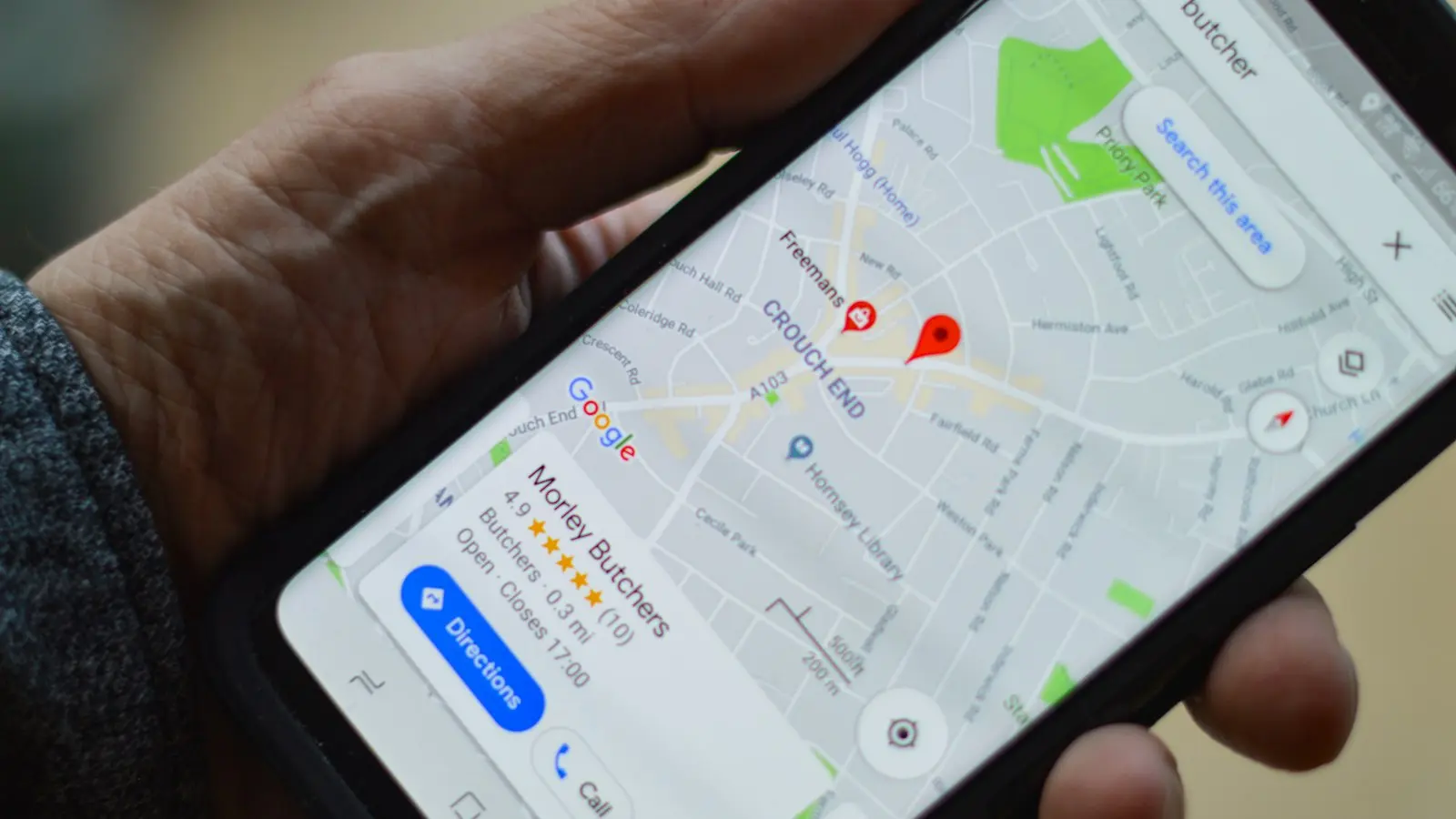
Your phone battery drains faster while traveling because it is often doing more work in less predictable conditions. Navigation keeps the screen, location services, map processing, mobile data, and audio active; unfamiliar networks may require more connection management; and cameras, translation apps, cloud backups, and bright outdoor displays add to the load.
That does not automatically mean the battery is failing. The useful question is which symptom you are seeing: rapid loss during navigation, overnight drain, heat while idle, poor reception, or a charge that disappears soon after using a power bank. The steps below separate normal heavy travel use from weak signal, roaming, background activity, heat, faulty charging equipment, and an aging battery.
Key Takeaways
- Weak or inconsistent cellular coverage can make a phone work harder to maintain a connection, especially in remote areas, airports, hotels, trains, and underground spaces.
- Navigation drain usually comes from several demands at once: the display, location updates, map processing, mobile data, audio, and sometimes poor reception.
- Check battery usage by app before disabling settings. Offline maps, lower brightness, limited background activity, and selective use of Battery Saver or Low Power Mode can help.
- Heat from direct sunlight, intensive use, or charging can affect battery behavior. Use compatible charging equipment and stop using damaged or swollen batteries and power banks.
- Compare your phone with similar usage before diagnosing a failing battery. Consistently short runtime, unexpected shutdowns, swelling, or charging problems warrant service.
1. Match the Battery Symptom to the Likely Cause
Start with the time and place where the battery falls fastest. A battery percentage is easier to interpret when you compare similar activities rather than comparing a quiet day at home with a full day of sightseeing.
Rapid loss during navigation or sightseeing usually points to several simultaneous demands. The display may remain on for hours, the phone may update your location repeatedly, maps may download new areas, mobile data may be active, and audio instructions may play through the speaker or a Bluetooth device. Taking photos, recording video, using translation tools, and working in direct sunlight can increase the load further.
Battery loss in airports, hotels, trains, or remote areas makes connectivity a stronger suspect. Inside buildings, underground transport, rural regions, and areas between coverage zones, the phone may repeatedly search for or negotiate a usable connection. A weak or inconsistent signal can increase power use even when you are not actively browsing.
Overnight drain is different. Check whether an app is running background tasks, syncing photos, refreshing messages, downloading updates, or generating repeated notifications. Poor indoor reception can also matter, particularly if the phone loses and reacquires service while you sleep.
A phone that becomes hot while idle deserves closer attention. Possible causes include a stuck app, a backup or update, direct sunlight, charging heat, or persistent connectivity work. Open the battery-usage screen before closing everything so you can see what was active.
A charge that drops soon after using a power bank may reflect heavy use during charging, heat, a worn cable, a damaged port, an incompatible accessory, or a power bank that is not delivering power consistently. It can also be a misleading comparison: the phone may have been using power almost as quickly as it received it.
One unusually demanding travel day is not enough to diagnose a failing battery. First compare battery use during similar periods and check which apps or system functions account for the loss.
2. Check Signal, Roaming, and Network Settings First
Weak cellular coverage is one of the most important explanations for travel phone battery drain. At home, your phone may remain connected to a familiar, stable network. While traveling, it may encounter different carriers, towers, bands, or coverage gaps and spend more time managing the connection.
Roaming does not automatically cause severe battery drain. The effect depends on coverage, the carrier arrangement, network selection, data activity, and how often the phone changes or loses service. Roaming can, however, coincide with the conditions that increase power use, especially when coverage is patchy or the phone is attempting to register on available networks.
Check your signal indicator and battery settings while the problem is happening. On an iPhone, the relevant controls are generally found in Settings under Battery, Cellular, and Mobile Service-related options, although names and locations can vary by iOS version, region, and carrier. On Android, look in Settings under Battery, Network and internet, SIMs or Mobile network, and related battery or connectivity sections. Manufacturer interfaces may rename or reorganize these controls.
The battery-usage page is particularly useful. On iPhone, it normally shows battery use by app and may distinguish screen activity from background activity. Android phones commonly provide battery usage by app and may identify foreground, background, or system activity. Look for an unfamiliar app, unusually high background use, or a sharp increase during the period when reception was poor.
If 5G coverage is inconsistent, test LTE or 4G if your phone and carrier offer a preferred-network setting. This is not a universal fix, and changing it can affect speed or availability. It is a useful comparison when the phone appears to be repeatedly switching between network types or holding a weak 5G connection.
Airplane mode can help during a flight or when you are in a prolonged area with no useful service. It stops cellular connection attempts and usually disables Wi-Fi and Bluetooth until you restore them selectively. The trade-off is important: airplane mode also interrupts ordinary calls, cellular messages, live navigation data, connected accessories, and other wireless services. Do not use it as a blanket solution if you still need to be reachable.
Wi-Fi may reduce cellular work in a hotel or airport, but reconnecting can trigger queued photo backups, app updates, email synchronization, or downloads. If the battery falls after joining Wi-Fi, check what started syncing rather than assuming Wi-Fi itself is the only cause.
3. Reduce Navigation, Location, Sync, and Screen Work
Navigation-related battery drain is usually a combined effect, not simply “GPS using too much power.” Location updates, map rendering, screen-on time, mobile data, route recalculation, voice instructions, and poor reception can all contribute. A phone used briefly to check a location will normally demand less than one mounted in a car with the display and navigation audio active for hours.
The most effective preparation is to download what you can before departure. Save offline maps for the areas you will visit, download translation packs, store tickets and reservations locally where the relevant service allows it, and download permitted music, podcasts, or video. Offline content reduces the need to fetch data repeatedly and gives you a backup when coverage is unavailable. It does not eliminate display, processing, or location power use, so it works best alongside shorter screen-on periods.
Review the battery-usage screen by app before changing settings. If a map, camera, social, cloud-storage, or travel app dominates foreground use, that may simply reflect how you used the phone. If an app shows substantial background activity while you did not open it, review its background refresh, sync, notification, and location permissions.
On both major mobile platforms, you can usually restrict background activity and choose whether an app may access location all the time, only while in use, or not at all. Menu names vary, so use the settings search field if necessary. Avoid disabling location indiscriminately: maps, emergency features, device-finding tools, transport apps, and other useful services may depend on it.
Lower display brightness when practical, shorten the screen timeout, and consider Low Power Mode or Battery Saver during long days. Dark or low-power display options may help on some screens, but their effect depends on the device and how you use it. Turn off always-on display features if you do not need constant glanceable information.
Bluetooth, a smartwatch, hotspot, and other connections are not automatically major drains. Keep them enabled when they provide a service you need, but disconnect unused accessories and turn off hotspot sharing when finished. Change one setting at a time, use the phone normally for a defined period, and compare battery use. Disabling everything at once makes it difficult to identify the real cause.
4. Manage Heat, Charging, and Battery Health Safely
Heat can make a travel day look like a battery problem. Direct sunlight, a hot car, intensive navigation, camera use, and charging at the same time can compound the temperature increase. Phones may reduce charging speed, limit performance, or show unusual percentage behavior when they become too warm.
Move the phone out of direct sun, avoid leaving it on a hot dashboard, and reduce demanding use while it charges. If the case traps heat, removing it temporarily may help when the manufacturer permits and the phone is otherwise protected. Follow the device maker’s temperature and charging guidance rather than trying to cool the phone abruptly with extreme methods.
Use a reputable, compatible charger, cable, and power bank. Inspect cables for damaged insulation, bent connectors, fraying, or loose plugs, and check the phone and accessory ports for debris or damage. Stop using a battery, cable, charger, or power bank that is swollen, leaking, physically damaged, unusually hot, or producing an intermittent connection.
A larger-capacity power bank is not automatically safer or faster. Output compatibility, build quality, condition, cable quality, and the phone’s charging requirements all matter. When flying, follow the current airline and aviation-authority rules for carrying lithium-ion power banks, including any restrictions on where they may be packed.
Check the built-in battery-health area before concluding that travel caused the problem. iPhones generally provide battery health or maximum-capacity information in Settings, while Android phones may expose battery-health information through device-specific settings or diagnostics. Names, availability, and interpretation vary by model, so do not treat one displayed percentage as a universal replacement threshold.
Service or replacement becomes more plausible when runtime is consistently much shorter during light use, the phone shuts down unexpectedly, the percentage drops rapidly, charging repeatedly fails, or the device stays hot without an obvious workload. Swelling or physical battery damage is a safety concern, not merely a performance issue; stop using the device and follow the manufacturer’s service guidance.
5. Use a Pre-Trip Battery Troubleshooting Checklist
Before leaving, update the operating system and essential travel apps using a reliable charger and connection. Make sure the phone has enough storage for offline maps and downloads, then confirm that the downloads actually open without a connection.
Record how the phone behaves during a normal day. Check the battery-usage screen, note the main apps, and test the screen, navigation, camera, and charging accessories you plan to use. A baseline makes it easier to distinguish a demanding itinerary from a new fault.
Test the exact wall charger, cable, car adapter, and power bank you intend to pack. Do not wait until an airport or remote hotel to discover that a cable is intermittent or that a power bank cannot adequately charge the phone.
Confirm roaming, mobile-data, SIM or eSIM, emergency-contact, and network settings with your carrier and device documentation. Also save boarding passes, reservations, addresses, translation resources, maps, and other essential information for offline access.
Finally, check overnight behavior in a familiar location with reliable coverage. If the phone loses substantial charge while idle there, investigate background apps, syncing, heat, and battery health before traveling. You can compare behavior in a poor-signal setting, but treat the comparison as a practical test rather than a laboratory measurement. Pack a safe charging option and avoid relying on a single power source.
FAQ
Does roaming make a phone battery drain faster while traveling?
It can contribute when roaming occurs alongside weak coverage, changing networks, or heavy data activity, but roaming alone is not proof of abnormal drain. Check signal conditions, network settings, and battery use by app before blaming the roaming plan.
Does GPS drain a phone battery while traveling?
Navigation can use substantial power because it combines location updates with an active display, map processing, mobile data, audio, and sometimes poor reception. Offline maps, lower brightness, shorter screen-on periods, and occasional route checks can reduce the combined load.
Should I use airplane mode to save battery on vacation?
Use it during flights or in places where you will have no useful cellular service and do not need wireless communication. It also disables or interrupts cellular service and may turn off Wi-Fi and Bluetooth, so restore those connections selectively when you need calls, messages, navigation data, or accessories.