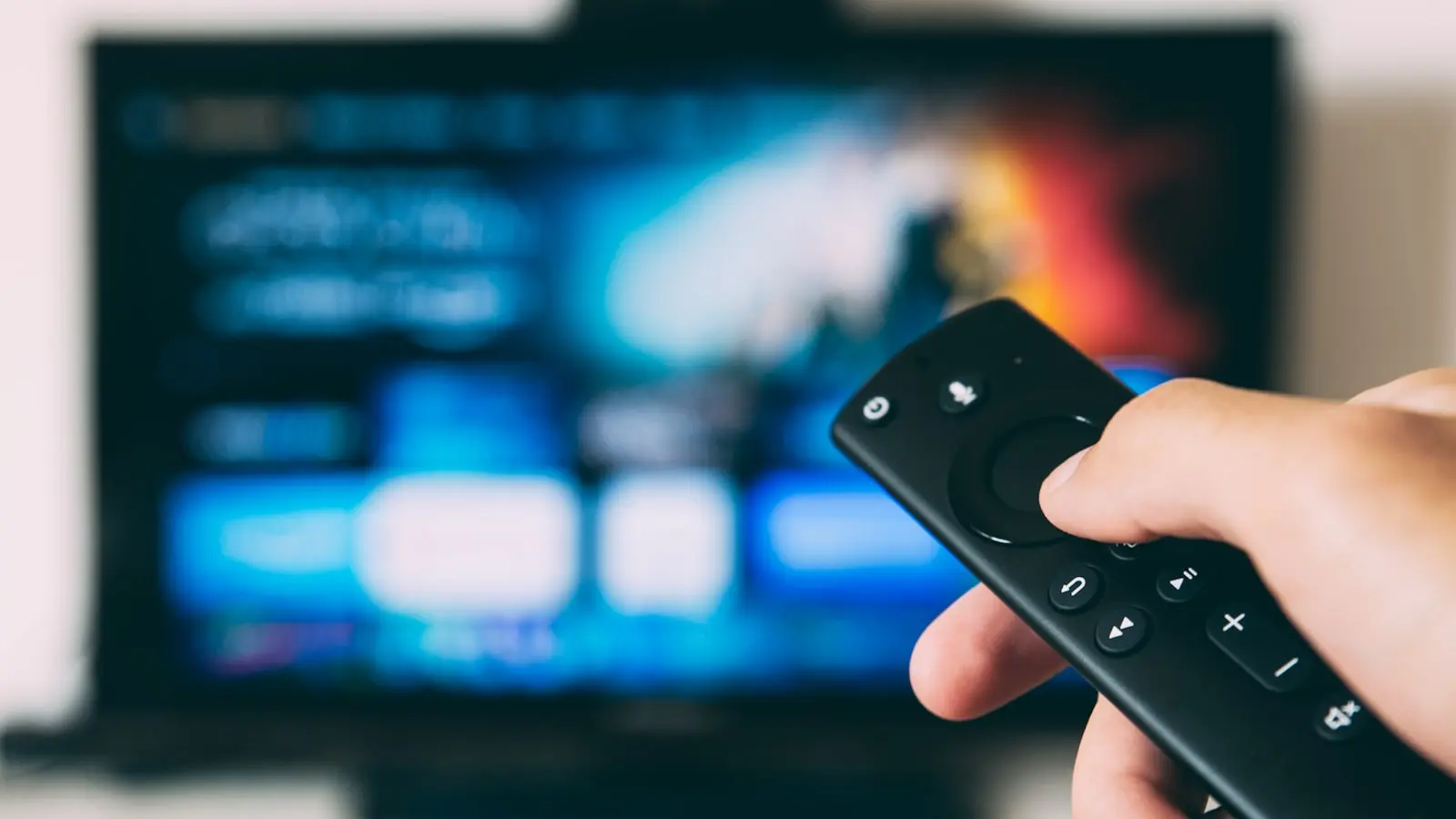
Autoplay makes it harder to stop watching because it turns another episode into the default instead of a new decision. When you choose an episode manually, even a brief pause gives you time to consider the hour, your plans, or whether you still want to watch. With autoplay binge watching, that pause is replaced by a countdown and immediate continuation.
Autoplay is not proof of poor self-control, and it does not by itself cause harmful viewing habits. It can be genuinely convenient during a planned movie night or a deliberate multi-episode session. The problem arises when automatic continuation works against a simple intention, such as watching one episode before bed.
Key Takeaways
- Autoplay removes the small decision point that normally appears between episodes.
- Countdowns, previews, recaps, and cliffhangers keep attention pointed toward the next episode.
- To disable streaming autoplay, check account or profile playback settings first; TV apps may not show every control.
- Turning off autoplay works best alongside an episode limit, a timer, or another planned stopping cue.
- The goal is intentional viewing, not treating all binge watching habits as a problem.
Autoplay removes the moment when you would normally choose
Manual playback creates friction: you reach for the remote, open an episode list, select the next installment, and press play. Those steps are minor, but they create a natural break in which your attention can shift away from the story.
Autoplay removes most of that break. The episode ends, a timer begins, and the next one starts unless you interrupt it. Continuing requires no action; stopping becomes the action you must take.
That reversal matters. A viewer may have decided to stop after episode three, but episode four can begin before that decision gets revisited. Once an opening scene has started, stopping can feel less appealing than it did during the credits a few seconds earlier.
Defaults also carry weight because most people leave convenient settings unchanged. Changing an option means finding it, understanding whether it affects every device or only one profile, and accepting a little more effort later. A default is not a command, but it shapes what happens when attention is low or a viewer is tired.
Why the next episode feels easy to accept
An end-of-episode countdown can make continuation feel inevitable. Instead of presenting a neutral choice between stopping and continuing, the interface may frame stopping as an interruption. A prominent next-episode button, a shrinking timer, or an immediate opening scene keeps the viewer focused on what comes next.
Previews, automatic trailers, recaps, and moving artwork can have a similar effect. They keep the app active and fill the quiet moment when someone might otherwise put down the remote. Even after cancelling a next-episode countdown, an autoplaying preview on the home screen can encourage another choice.
Storytelling adds its own momentum. Cliffhangers, unanswered questions, new conflicts near the credits, and the promise of a quick resolution in the next episode create understandable curiosity. A series does not need to be described as addictive for it to be difficult to leave at a particularly suspenseful moment.
Repeated routines can strengthen the effect. A cue might be finishing dinner, getting into bed, or wanting a break after work. The routine is opening a streaming app, and the reward may be relaxation, distraction, or narrative resolution. Over time, starting a show can become automatic before the next-episode feature even enters the picture.
Release timing, season length, episode count, and personal schedules can all influence viewing pace. Still, no single design feature affects everyone in the same way. Defaults and familiar routines can influence behavior without determining it; household habits, stress, sleep needs, and interest in a series all matter too.
Find and change autoplay settings before the next session
The most direct way to reduce autoplay binge watching is to turn off next-episode autoplay where the service offers that option. There is no universal settings path, however. Streaming app controls may be attached to an account, a profile, a browser, a mobile app, or a particular TV device.
Start with the service’s account or profile settings rather than assuming the TV app includes every option. Look for labels such as “autoplay,” “autoplay next episode,” “play next episode,” “play previews,” “video playback,” or “data usage.”
If you are looking for autoplay settings on a TV, the web account page or mobile app may provide more controls than the television interface. Some services apply playback preferences to an individual profile, while others may apply them more broadly. Check the setting’s scope before assuming it will work across every device in the home.
After making a change, save it, reopen the app if needed, and test it at the end of an episode. This is more reliable than discovering later that the setting applied only to a different profile or device.
Exact labels and options vary by streaming service, app version, device, profile type, and region. Menus also change over time. A general settings-check process is more dependable than relying on a fixed path that may no longer match the version of the app you use.
Disabling next-episode autoplay is different from disabling preview autoplay. Next-episode autoplay determines whether another episode starts after the current one ends. Preview autoplay controls whether trailers, clips, or animated artwork begin while you browse.
You may want to disable streaming autoplay for episodes while keeping previews on for discovery. Or you may prefer both settings off because moving previews make it harder to leave the app after finishing a show. They are separate sources of momentum, not necessarily one all-or-nothing control.
Some devices add another layer of boundaries. A TV, streaming box, phone, tablet, or game console may include a sleep timer, idle timer, accessibility feature, or parental-control tool. These features do not all stop playback in the same way, but they can add a useful stopping point when app-level controls are limited.
Build stopping cues that do not rely on willpower alone
Changing a setting helps because it restores a pause, but it is usually more effective when paired with a decision made before the show becomes absorbing. The aim is not to make entertainment restrictive. It is to make another episode a conscious choice when you had planned to stop.
Use this intervention ladder, starting with the least disruptive option:
- Turn off next-episode autoplay where available.
- Disable autoplaying previews or trailers if browsing often restarts viewing.
- Set an episode limit or an end time before pressing play.
- Create a phone, TV, smart-speaker, or smart-home reminder shortly before the planned stop.
- Use a device sleep timer if your hardware supports one.
- Put the remote, phone, or streaming device out of immediate reach after starting the planned episode, especially at bedtime.
Precommitment is the practical idea behind these steps. Deciding at the start of the evening that you will stop at a certain time is often easier than renegotiating during a countdown or cliffhanger. The plan does not remove choice; it gives your earlier priorities a way to compete with the immediate pull of the next episode.
Match the intervention to the pattern. If you only occasionally watch one episode more than planned, turning off autoplay may be enough. If late-night viewing regularly affects sleep, morning responsibilities, or household routines, combine streaming app controls with a timer and a physical boundary, such as charging the remote or phone outside the bedroom.
There is a trade-off. Turning off autoplay adds a click when you genuinely want to keep watching. For many people, that small inconvenience is worthwhile because it restores a decision point. If your service supports profile-specific preferences, you may also choose different settings for a bedtime profile and a profile used for planned weekend viewing.
When autoplay controls are not enough
An autoplay toggle cannot remove every reason a person keeps watching. Narrative curiosity remains, as can stress-driven viewing, recommendations, alerts about new episodes, a partner who wants to continue, or a long-established bedtime routine.
If disabling autoplay does not change the pattern, review related controls. Turn off nonessential notifications, reduce attention-grabbing previews, and check whether each household profile has separate playback preferences. A dedicated bedtime profile may make preferred settings easier to preserve without changing everyone else’s viewing experience.
It can also help to use a viewing window rather than waiting for a satisfying story resolution. Television episodes often create a reason to continue near the end, so a clean narrative endpoint may not arrive when you need it. A time-based stopping cue creates a boundary that the show cannot move.
If viewing regularly causes significant distress, ongoing sleep disruption, or problems with work, school, relationships, or daily responsibilities, consider discussing the broader pattern with an appropriate qualified professional. An autoplay setting can reduce friction, but it cannot diagnose or resolve every underlying routine or concern.
FAQ
How do I disable streaming autoplay on my TV?
Check the streaming service’s account or profile playback settings for an option such as “autoplay next episode.” TV apps may show fewer controls than web or mobile account management, so you might need to make the change elsewhere and reopen the TV app. Confirm whether the setting applies to your current profile, all devices, or only the device you are using.
Why is autoplay harder to stop than choosing the next episode myself?
Manual selection creates a decision point. Autoplay replaces that pause with automatic continuation, a countdown, and sometimes an immediate preview or opening scene. You can still stop, but stopping requires an active interruption while continuing requires no action.
Can parental controls or accessibility settings stop autoplay?
They may help on some services or devices, but they are not a universal autoplay solution. Depending on the platform, these tools may offer restricted profiles, time-related limits, device timers, or playback controls. Check the settings for your specific service and device because their availability and purpose vary.