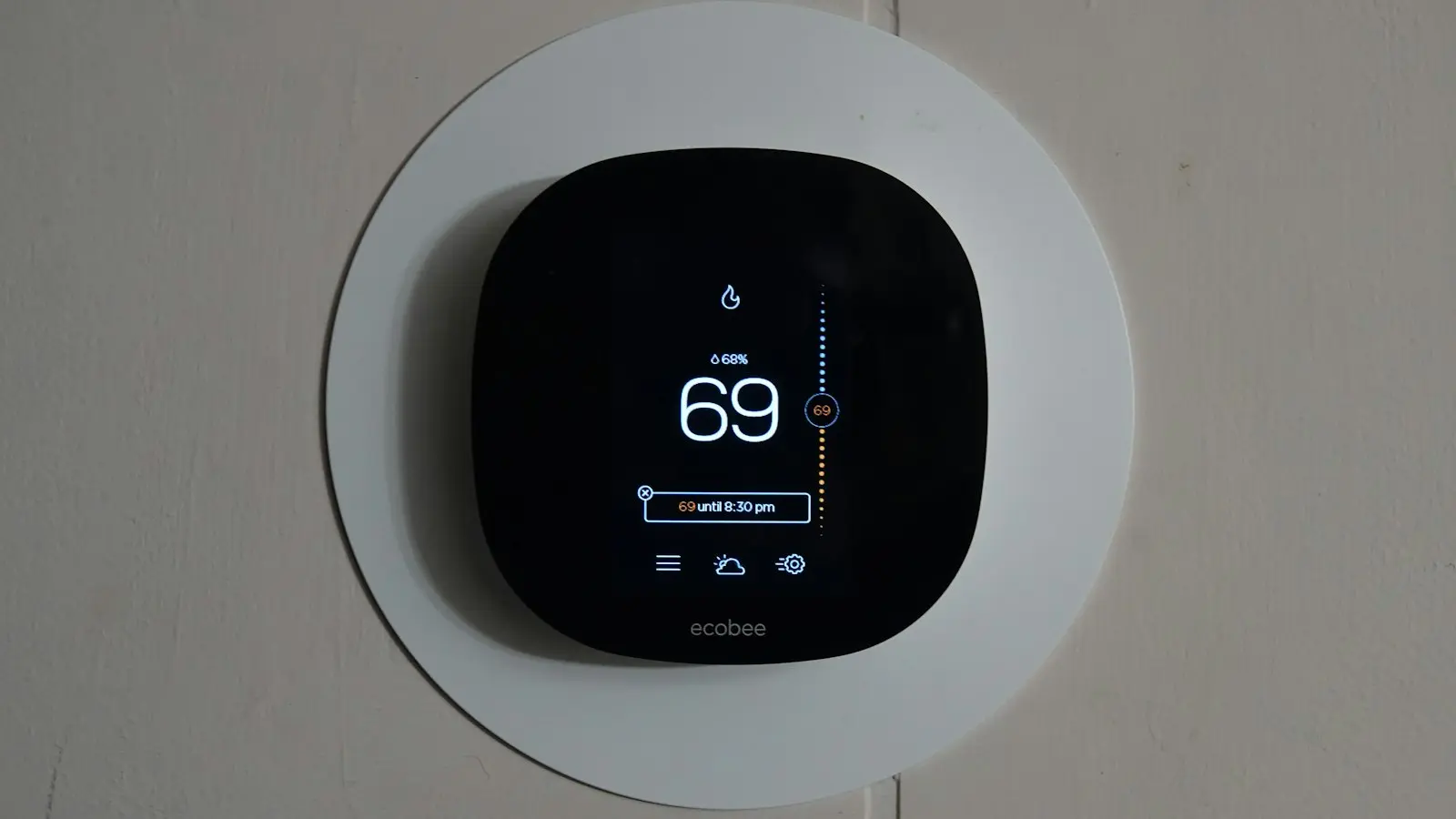
If your smart thermostat turns on at night, do not reset it first. Determine whether the thermostat changed its target temperature, the heating or cooling system ran at the same target, the fan ran alone, or only the display woke up.
That distinction narrows the cause quickly. A changed target temperature usually points to a schedule, preset, automation, shared account, or energy program. Equipment that runs while the target stays unchanged may be maintaining the setpoint, following a fan or humidity feature, or showing an HVAC issue that needs service.
Key Takeaways
- Check whether the target temperature changed before assuming the HVAC system malfunctioned.
- Review schedules, sleep presets, geofencing, shared access, and linked automations before resetting anything.
- Test one control source at a time overnight and record the result.
- A fan can run without heating or cooling when circulation, timed fan, or ventilation settings are active.
- Treat equipment that runs without a thermostat command as a possible HVAC issue, especially if there are odors, smoke, breaker trips, or repeated short cycles.
Before changing settings, record what happened: the time, room temperature, target temperature, active mode, fan status, and any equipment-status message in the thermostat app or display. Screenshots are useful when several automations can control the same thermostat.
Confirm Whether a Setting Changed or the HVAC System Ran
Start with the thermostat display or app history, if your model offers it. Compare the target temperature before bed with the target when the system starts. Look for indicators showing heating, cooling, fan-only operation, or auxiliary heat.
If the thermostat changes temperature on its own, something in the control chain likely instructed it to do so. Common sources include an overnight schedule, sleep comfort profile, learning feature, home-and-away setting, shared household member, or connected routine.
If the setpoint stays fixed but the furnace or air conditioner starts, the system may simply be maintaining that target. Equipment does not always start at the exact number shown on the display. The indoor temperature can move beyond the system’s control threshold before heating or cooling begins, and that behavior varies by thermostat and HVAC configuration.
Fan-only operation is different. If the fan indicator is active but there is no heating or cooling call, a circulation, timed, or continuous fan setting may be responsible. A waking display is different again: some thermostats wake when they detect motion, receive an app update, or refresh information. A lit screen alone does not prove the HVAC system started.
Protective delays can also be normal, particularly with cooling equipment. Rather than judging the system by clicks, airflow noise, or screen activity, use the thermostat’s status indicators or run history where available.
Stop Overnight Temperature Changes From Schedules and Presets
Check the smart thermostat schedule first. Look for overnight entries, including old weekday and weekend rules created months ago and left enabled. A manual bedtime adjustment may be only a temporary hold, allowing the thermostat to return to a programmed temperature at the next scheduled transition.
Also review features labeled comfort profiles, sleep settings, routines, temperature presets, adaptive schedules, learning schedules, or seasonal modes. Names differ by manufacturer, model, software version, and region, but these features commonly apply saved temperatures when a time, occupancy state, or system condition is met.
For example, a sleep preset may lower the heating target at bedtime and raise it before morning. That can be useful when it matches your routine, but confusing when you manually choose another temperature and expect it to remain in place all night. Homes using automatic heat/cool mode may also have separate heating and cooling schedules that overlap.
Use a controlled test instead of disabling everything at once:
- Screenshot or write down the schedule, active preset, and current temperature targets.
- Disable one schedule-related feature, such as a learning schedule or sleep routine.
- Set a stable overnight temperature and confirm whether it is a temporary hold or a lasting change.
- Observe the thermostat for one full night and record any change and its time.
- Re-enable features one at a time after identifying the trigger.
This preserves evidence. Deleting every schedule or factory-resetting the thermostat may stop the symptom temporarily, but it also makes the original cause harder to identify and creates unnecessary setup work.
Check Other Controls That Can Change Your Thermostat
A smart thermostat automation can originate outside the thermostat’s own app. A connected home may have several systems capable of changing the same temperature, and each can appear reasonable when viewed separately.
Start with home-and-away settings and geofencing. These features use phone location, occupancy sensors, or household presence to select home or away temperatures. Lost location permission, an inaccurate phone location, a depleted phone battery, or an outdated household device can create a thermostat geofencing issue. If the system thinks everyone left, it may use an away preset; if it thinks someone returned, it may restore the home setting.
Next, review shared-home access. Another authorized person may have adjusted the thermostat from the app, wall display, or a voice command. Confirm which accounts can control the home and remove access for former residents, guests, or accounts no longer in use.
Then inspect linked services. Voice assistants, home-automation hubs, security systems, scenes, routines, and energy-management apps can contain thermostat actions inside broader bedtime routines. A routine intended to lock doors and turn off lights may also change the temperature or fan setting.
Utility energy programs are another possibility. Some customers enroll in demand-response, peak-event, or energy-saving programs that can adjust a connected thermostat under program terms. Notices, opt-out choices, and adjustment limits vary by utility, region, and program, so verify enrollment through your utility and thermostat-provider accounts.
To isolate these controls, pause one source at a time. For one overnight test, leave the thermostat schedule active but pause geofencing. On the next test, restore geofencing and pause a voice-assistant routine or hub automation. Keep a simple log of the setting tested, the time, and the result.
If unexpected changes stop after one source is paused, restore the other controls and revise or remove the rule responsible. This is more reliable than permanently disabling every integration.
Why Heat, Cooling, or the Fan Can Run With an Unchanged Target
An unchanged target temperature does not mean the HVAC system should remain off. If heating is set to 68 degrees, the room may cool enough below the control threshold for the furnace to start even though the displayed target remains 68. Cooling follows the same general principle when indoor temperature rises beyond its threshold.
The thermostat’s reading can also differ from temperatures elsewhere in the home. Wall placement, drafts, direct sunlight, airflow, insulation, outdoor weather, nearby appliances, and remote sensors can all affect what the thermostat detects. A cold bedroom does not automatically mean the thermostat is reading its own location incorrectly.
Check fan mode if the HVAC fan runs at night. Auto usually runs the blower with active heating or cooling. A continuous, timed, or circulation setting may run the blower periodically without a heating or cooling call. This may improve air mixing, but it can be noisy enough to resemble unexplained nighttime activation.
Some compatible systems also support humidity control, dehumidification, ventilation, air-quality operation, or auxiliary and emergency heat settings. For example, cooling may operate differently when humidity management is enabled and supported by the installation. These functions are system-specific, so check active equipment status rather than relying on the target temperature alone.
If the thermostat shows heating or cooling while its mode is off, or if equipment continues operating after the thermostat has clearly stopped calling for it, treat the issue as a possible HVAC fault rather than a smart-home setting problem.
Reset Only After You Isolate the Cause
A restart can help when the app is not updating, the thermostat interface is frozen, or account changes do not appear to sync. Restart only after documenting schedules and checking suspected automations. Use the manufacturer-approved process for your exact model.
A sensible reset ladder is:
- Refresh the app and verify that you are viewing the correct home and thermostat.
- Check the current schedule, preset, shared access, and connected automations.
- Restart the thermostat using its supported controls or settings.
- Reconfigure only the schedule, preset, or automation that caused the issue.
- Consider a factory reset only when manufacturer guidance supports it and other checks have not explained the behavior.
A factory reset can erase schedules, Wi-Fi settings, account connections, and equipment configuration. It may not fix a wiring issue, sensor problem, furnace fault, air-conditioner fault, or control-board issue. Do not treat it as a shortcut for unexplained equipment operation.
Do not open electrical panels, remove HVAC covers, bypass thermostat wiring, or modify safety controls. Contact a qualified HVAC technician for burning or gas-like odors, smoke, repeated breaker trips, rapid repeated cycling, suspected wiring trouble, heating or cooling that continues while the thermostat is off, or loss of heat during unsafe cold weather.
The practical rule is simple: solve the control-chain problem first when the thermostat changes its own setpoint. When equipment runs without a matching thermostat command, move from app troubleshooting to HVAC diagnosis.
FAQ
Why does my smart thermostat change temperature in the middle of the night?
An active schedule, sleep preset, learning feature, geofencing rule, shared account, linked routine, or energy-management program may be changing it. Compare the time of the change with schedules and automation activity, then disable one suspected source for an overnight test.
Why does my HVAC fan run at night when the thermostat temperature has not changed?
The fan may be in continuous, timed, or circulation mode. Some systems also run the blower for ventilation, humidity control, or normal post-heating and post-cooling operation. Check whether the thermostat shows fan-only operation or an active heating or cooling call.
Can a utility company or another person change my smart thermostat settings?
Potentially. An eligible energy program may adjust settings under its terms, and any account with shared-home access can make changes. Voice assistants, hubs, security platforms, and routines can also send thermostat commands. Review shared users, linked services, program enrollment, and automation rules to identify the active control source.