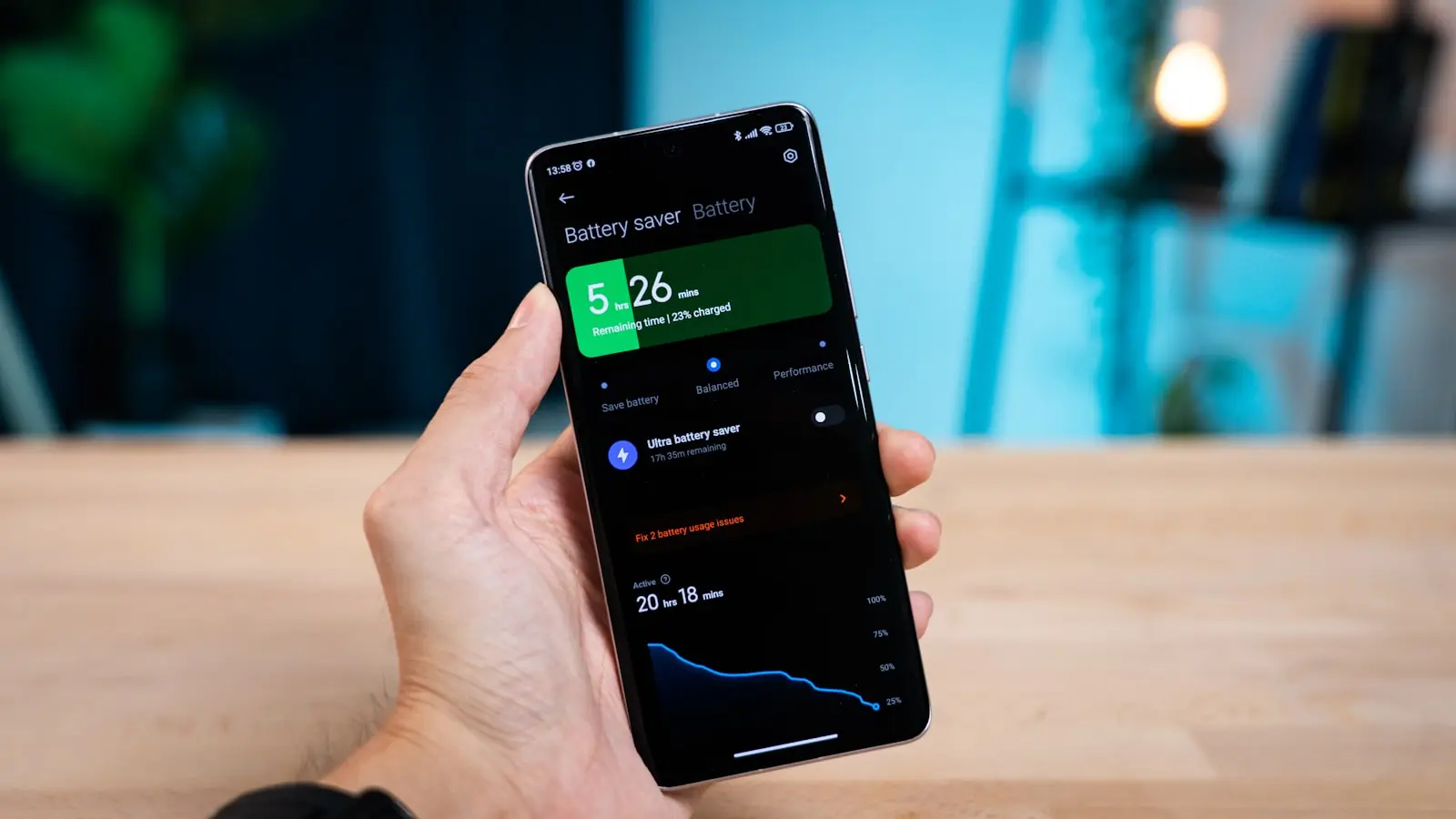
You installed a major update, and now your phone battery seems to drop 1% every few minutes. This is a common temporary effect. The battery drain after update is usually caused by background processes: indexing files, optimizing apps, and syncing data. Both iOS and Android run these tasks for 24 to 48 hours after an update. Resist the urge to troubleshoot immediately; most smartphones need that time to settle before battery life returns to normal.
Key Takeaways
- Battery drain after a major update is normal and typically lasts 24–48 hours due to background indexing and optimization.
- Wait at least two days before troubleshooting. Official support pages from Apple, Samsung, and Google advise this.
- Check battery usage stats on your phone to identify specific apps causing drain; a double restart can often resolve minor glitches.
- Quick settings tweaks like limiting background refresh, location services, and screen brightness can help during the settling period.
- If drain persists beyond a week, try battery calibration, resetting settings (no data loss), or a factory reset as a last resort.
The Real Reason Your Battery Drains After an Update
When you install a system update, your phone does more than just apply new features. It re-indexes all your photos, messages, and files. It re-optimizes every app to work with the new operating system. It also re-syncs your accounts and downloads any pending data. These tasks are processor-intensive and keep the screen and radios active longer than usual. Apple, Samsung, and Google all acknowledge this in their support documentation. Apple mentions an “Ongoing iOS Update” insight in battery settings during this period. Samsung community representatives remind users that background optimization can take a couple of days. Google’s Pixel community confirms the same pattern. The battery drain after update you notice is therefore a feature, not a flaw – but one that should resolve on its own.
How Long Should You Wait Before Troubleshooting?
Official support pages from all major manufacturers advise waiting at least 48 hours before you start looking for a deeper problem. During that time, your phone completes its background work and recalibrates its battery reporting. If you jump into troubleshooting too soon, you might waste time on steps that would have fixed themselves. Set a mental timer. If the drain remains severe after two full days of normal use – meaning you charge overnight and use the phone as usual – then you can move to the next steps. If you see dramatic improvement within that window, you are fine.
Step-by-Step: Check What’s Draining Your Battery
To understand exactly what is consuming power, look at the battery usage screen. On an iPhone, open Settings, tap Battery, then view Battery Usage by app. You may see a line that says “Ongoing iOS Update” – that tells you the system is still finishing background tasks. On Android, go to Settings, then Battery, and tap Battery Usage (the exact name varies by manufacturer). You will see a list of apps and their percentage of drain. Common offenders after an update include media players like YouTube or Spotify, which may be re-syncing or re-downloading content. Also check for any app that is using location or camera without apparent reason. After you check, restart your phone twice. A double restart helps finalize installation scripts and clears minor glitches in the battery reporting system. This simple step alone can reduce the battery drain after update for many users.
Quick Settings Tweaks to Stop Battery Drain
If waiting and restarting are not enough, you can reduce power draw by adjusting a few settings. On iOS, turn off Background App Refresh for non-essential apps. On Android, restrict background activity for apps that you do not need updating constantly. Limit Location Services to only the apps that truly need your location – mapping, weather, ride-sharing. Set screen brightness to automatic or reduce it manually; the display is often the largest power consumer. Turn off Bluetooth and Wi-Fi scanning when you are not actively using them. If your device supports it, enable Adaptive Power (iOS) or 5G Auto (Android) to let the system choose the most power-efficient network mode. These tweaks are safe and reversible, and they can cut the battery drain after update by a noticeable margin while you wait for the optimization to finish.
When to Calibrate Your Battery or Reset Settings
Battery calibration is a one-time step that can help the system relearn the true capacity of your battery after a major update. To calibrate, let your phone drain completely until it shuts off. Then charge it uninterrupted to 100%. Do not unplug early. This process helps the battery gauge match the actual charge level. It is not something you need to do regularly. If calibration does not help, try resetting settings without erasing your data. On iPhone, choose Settings > General > Transfer or Reset iPhone > Reset > Reset All Settings. On Android, look for Reset Settings (not Factory Reset) in the System or General Management menu. This clears system preferences like Wi-Fi passwords and wallpaper choices but leaves your photos, contacts, and app data intact. Many users find that a settings reset resolves lingering bugs that contribute to the battery drain after update.
Is It a Permanent Bug? How to Report and When to Factory Reset
If you have waited 48 hours, tweaked settings, restarted twice, and still see extreme drain – for example, losing 5% or more per hour while idle – you may be dealing with a permanent bug. Check for overheating; if the phone feels hot even during light use, an app may be stuck in an error loop. On Samsung devices, a known fix is to uninstall updates to the Mobile Services system app. Go to Settings > Apps, enable Show System Apps, search for “Mobile Services”, tap it, and select Uninstall updates. This often resolves drain issues tied to Samsung’s framework. On Pixel phones, report the problem through the Google support community or the Feedback option in settings. If no specific fix is available, consider a factory reset as a last resort. Backup your data first, then reset. After the reset, test the phone for a day without restoring any old apps. If the battery behaves normally, then a third-party app was the cause. Reinstall apps one by one to isolate the offender. A factory reset is time-consuming, but it can eliminate stubborn software problems that mimic battery drain after update.
Frequently Asked Questions
How long does battery drain last after a smartphone update? Typically 24 to 48 hours. Most official support pages advise waiting that long before taking any action. The drain is caused by background indexing, app optimization, and syncing tasks that finish within that window.
Does resetting settings delete my data? No. The “Reset All Settings” option on iOS and “Reset Settings” on Android clear system preferences, network configurations, and display settings. They do not remove your photos, contacts, messages, or installed apps.
Why is my battery still draining after a week? If you still see fast drain after a week, the cause is likely a specific app bug, a corrupted system file, or battery aging. Check battery usage stats for an unusual app. Uninstall suspect apps, especially newly updated ones. If nothing helps, contact manufacturer support for further diagnostics.
Could the update be intentionally slowing down my older phone? While new features can increase power draw on older hardware, extreme drain is not a deliberate design. Manufacturers have faced scrutiny over so-called planned obsolescence, and most now offer performance modes to manage battery life. If your older phone suffers severe drain after an update, it is usually a bug that can be fixed with a settings reset or a later patch, not a plot to force an upgrade.