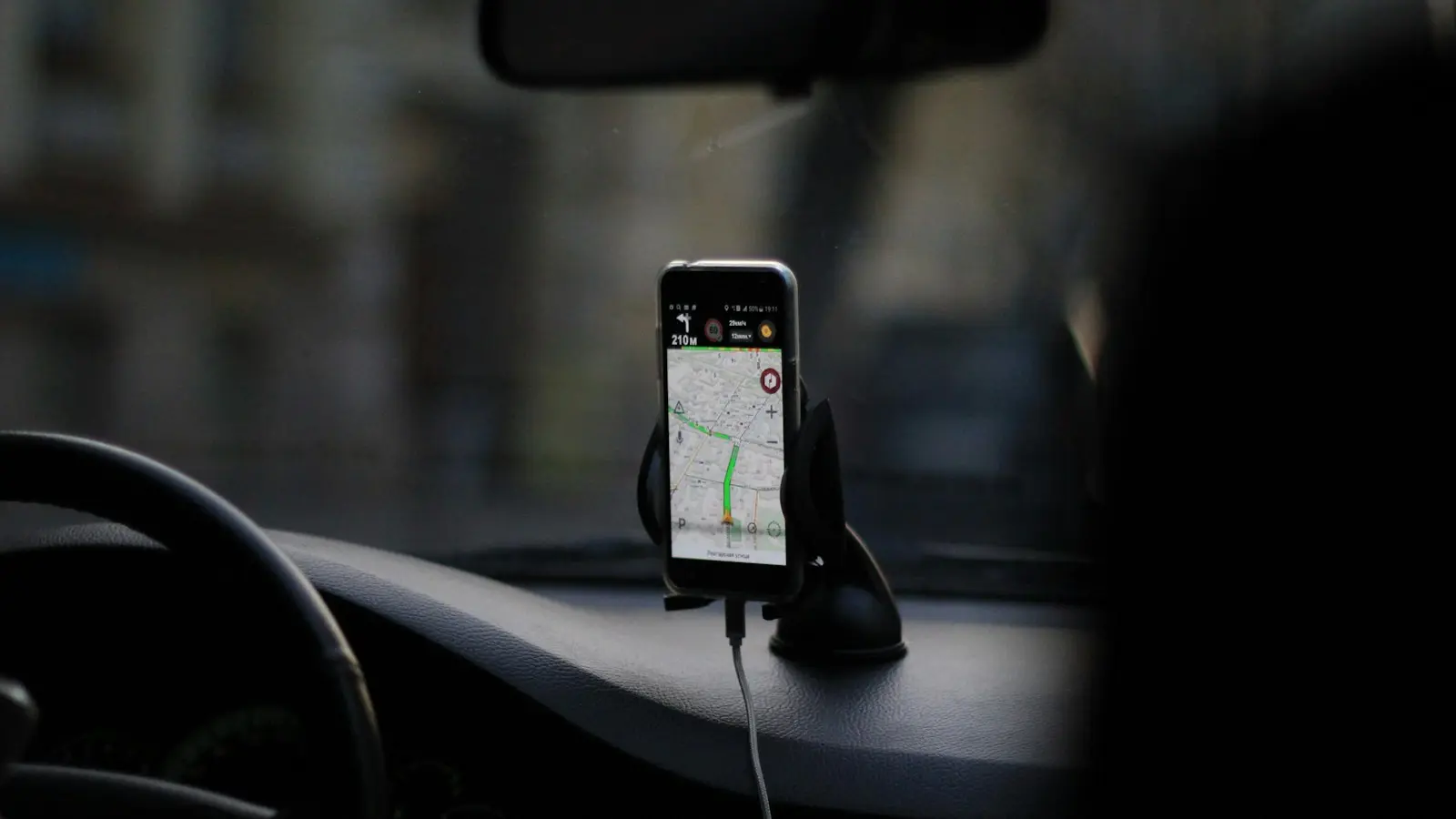
Offline maps not working abroad does not always mean your phone has lost GPS. Your phone may still determine its approximate location without roaming, mobile data, or a working eSIM, but navigation also depends on downloaded map data, app permissions, storage, and supported route types.
The practical approach is to treat offline navigation abroad as a backup system rather than a setting that makes every map feature work without signal. Download maps before departure, test them with mobile data off, keep reliable power available, and carry a second route option for important drives.
Key Takeaways
- GPS or other satellite positioning can often work without mobile data, but it does not provide roads, addresses, or turn-by-turn instructions on its own.
- Download map regions before travel, including airports, rural roads, border crossings, detours, and destination buffers.
- Live traffic, changing closures, transit updates, and some search or rerouting functions may be limited without a connection.
- If offline maps fail, isolate the problem: map download, location permission, route coverage, storage, battery, or eSIM data.
- Never troubleshoot navigation while driving. Pull over safely, then switch to a backup app, device, or saved route overview if needed.
Why offline maps can fail even when your phone still knows where it is
A navigation app relies on separate systems. GPS and other global navigation satellite signals help the phone estimate its position. Mobile data or Wi-Fi can provide map tiles, business listings, current traffic, changing road conditions, route updates, and cloud-based search. Downloaded map data fills some of that gap when connectivity disappears.
That distinction explains a common travel problem: the blue location dot appears, but the map is blank, a destination cannot be found, or the app will not create a route. GPS coordinates are not a road map. They do not include the locally stored roads, addresses, route rules, or points of interest an app may need for guidance.
GPS without mobile data can often work outdoors when Location Services are enabled and the device has a reasonably clear view of the sky. It may be less reliable in tunnels, underground car parks, dense city streets, indoor areas, and narrow mountain valleys. A phone can also use nearby Wi-Fi and cellular signals to improve location estimates, so position locking may be slower or less precise after data fails.
Settings matter as much as satellite reception. Disabled location permission, approximate-location controls, aggressive battery saving, or app restrictions can leave the location dot frozen or missing. Test the behavior on your own phone and map app before relying on it abroad.
Prepare offline navigation before departure
Download the full area you may realistically drive through while connected to dependable Wi-Fi. Do not save only the city where you are staying if the route includes an airport, a rural attraction, a border crossing, or a long detour around a closure. The useful offline region is the full driving corridor plus a buffer around it.
To download Google Maps offline, find the destination or region while connected, open the app’s offline-map controls, choose an area large enough for your route, and wait for the download to complete. Exact menus, supported features, and coverage can change, so check the current in-app guidance and official support information for the version you use. Apply the same caution to any other mapping app.
Offline map storage is a practical limitation. Large regions can take significant device space, particularly if you save multiple countries while also storing photos and video. Clear unnecessary files before downloading and leave spare storage; a region that starts downloading but cannot finish is not a reliable backup.
Some apps may require downloads to be refreshed periodically, while updates, account changes, or storage cleanup can affect saved areas. Before leaving, restart the phone, reopen the map app, and confirm the regions still appear in its offline-map list. Update the app while you have dependable Wi-Fi rather than relying on a remote connection.
Save information that may be difficult to search without data. Keep your accommodation address, rental-car return point, parking location, fuel stops, emergency contacts, and meeting places in a local note. Saving the full street address and, where useful, the local-language destination name can make signs and spoken directions easier to match.
Use a two-layer backup. A second offline-capable navigation app or a dedicated GPS device can help if the first app has a bad download or a routing limitation. For a critical drive, save a route overview or carry a simple printed note with major roads, towns, and key turns.
What still disappears without data or a working eSIM
Downloaded maps can preserve map viewing and, in some apps and regions, driving directions. But services that rely on fresh information may disappear or become stale. Live traffic, collision reports, changing road closures, fuel prices, business hours, transit arrivals, shared location, and cloud-synced edits may not be available without data.
Place search can also be limited. A saved address or pinned destination is more dependable than assuming every restaurant, trailhead, or hotel name will be searchable offline. Results can depend on the downloaded area, the app’s offline database, and how the destination is entered.
Route recalculation is conditional as well. An app may reroute after a missed turn if the surrounding roads are stored locally, but it may not if the detour leaves the downloaded area or the selected travel mode needs online services. Before travel, set a route, turn off mobile data, and test a missed turn near home to learn what your chosen app can do offline.
An eSIM travel navigation plan is useful, but it does not replace downloaded maps. An eSIM provides data only after the phone supports it, the eSIM is installed and activated correctly, the plan is valid, the phone registers with a compatible network, and coverage exists where you are driving. Rural roads, borders, mountains, and tunnels can still have weak or unavailable service.
Check which SIM is assigned to mobile data. If your phone has both a physical SIM and an eSIM, the travel eSIM may be installed but not selected as the data line. Follow the provider’s instructions for data roaming, as requirements vary. Avoid changing settings blindly if you are trying to prevent charges on your home line.
Emergency calling is separate from navigation. The ability to place an emergency call without active data depends on the country, device, available networks, and service conditions. Learn the local emergency number before departure, and do not assume a map app, eSIM, or device feature guarantees emergency access.
Troubleshoot offline maps not working by isolating the failed layer
First, stop safely before changing settings. Do not troubleshoot navigation while driving. Pull over in a legal, secure location, then determine whether the issue involves map data, location, routing, storage, battery, or mobile data.
Blank map or missing roads: Open the app’s offline-map section and confirm that the required region, not just a nearby city, was downloaded. Check that the download completed and remains available. If storage is low or the data looks incomplete, reconnect to stable Wi-Fi and refresh the download before continuing.
Blue dot missing, frozen, or inaccurate: Turn on Location Services and confirm the map app can access your location. If the phone offers approximate and precise location controls, precise location is generally more useful for turn-by-turn navigation. Move outdoors, temporarily relax restrictive battery settings, then restart the app or phone if the position remains stuck.
A route will not start or reroute: Confirm that both the origin and destination are inside the downloaded coverage area. Try a supported driving mode rather than assuming walking, cycling, transit, and driving have identical offline support. If routing works only with data enabled, save a simpler route or switch to the backup tool before leaving.
Offline downloads fail: Use stable Wi-Fi, free storage, and current app and operating-system software. Confirm you are signed into the intended account if the app requires one. Do not rely on a partially downloaded region; wait until the app visibly identifies it as complete.
Battery drains too quickly: Navigation can keep the screen, location services, and processor active for extended periods. Reduce brightness, close unnecessary apps, keep the phone out of direct sunlight, and use a secure car charger. Carry a charged power bank, but do not assume a loose cable or low-power vehicle port can keep up with active navigation.
eSIM shows no data: Check device compatibility, installation status, activation timing, the selected mobile-data line, and remaining plan allowance. Then review roaming settings where applicable, automatic or manual network selection, and any APN details supplied by the eSIM provider. If data still fails, use Wi-Fi to contact the provider and continue with offline maps rather than waiting for service to recover.
Build a travel-ready navigation setup that survives weak coverage
Use downloaded maps as your continuity plan for rural roads and unreliable coverage. Mobile data improves navigation with current traffic and closure information, but it should not be the only way to reach your destination.
Before each long drive, test the essentials with mobile data switched off. Confirm the app can show your position, open your saved destination, and begin turn-by-turn guidance. This test is more useful than simply seeing an offline region listed as downloaded because it exposes coverage, routing, and permission problems early.
Plan power around the vehicle you will actually use. Rental cars may have different USB ports, power sockets, or charging speeds than your own vehicle. Bring the right cable, a vehicle adapter if needed, and a mount that keeps the phone secure without blocking your view.
Keep the failure plan simple. If primary navigation becomes unreliable, switch to the backup app or device, head toward a known major road or town, conserve battery, and seek assistance from a safe location. The goal is not perfect live guidance everywhere; it is avoiding a situation where one failed data connection leaves you without a workable next step.
FAQ
Can GPS work without mobile data when traveling abroad?
Often, yes. A phone can usually receive satellite positioning signals without a mobile-data connection if Location Services are enabled and signal conditions are adequate. GPS alone does not provide map details or live route information, so downloaded map data is still important.
Why are my downloaded Google Maps offline maps not working?
The downloaded area may not include the route, the download may be incomplete, the app may need an update, or storage may be too limited. Location permissions, battery restrictions, and route-mode limitations can also prevent normal navigation. Check the app’s offline-map status while you have Wi-Fi.
Does an eSIM make offline navigation unnecessary?
No. A working eSIM can restore search, traffic, and live updates where coverage is available, but it cannot guarantee service on remote roads or inside tunnels. Downloaded maps and a second navigation option remain a more resilient setup.