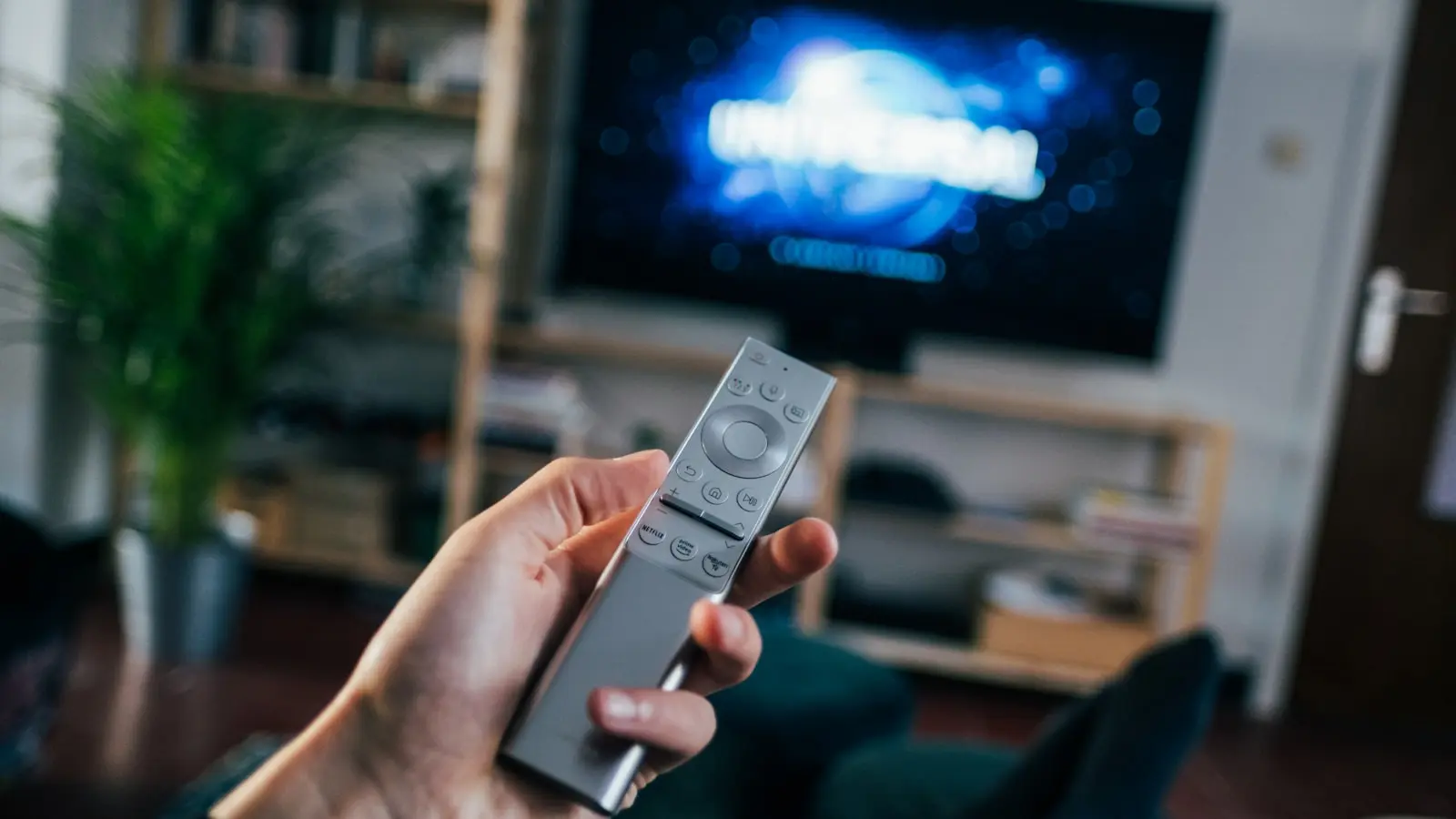
If your TV picture mode is changing, do not start with a factory reset. First identify the trigger: room lighting, a streaming title starting, a particular HDMI device, or a restart. Modern TVs often load separate settings for different formats and sources, so apparently random behavior may be several overlapping controls.
Key Takeaways
- Check whether the change follows room light, a specific app, an HDMI input, or HDR and Dolby Vision content.
- Disable ambient-light, energy-saving, and automatic picture controls before resetting anything.
- Set picture preferences separately for SDR, HDR, Dolby Vision, and each important input where your TV supports it.
- A darker HDR image is not automatically a fault; confirm the active HDR picture mode first.
- Use a factory reset only after restarts, updates, source testing, and a picture-settings reset fail.
The quickest fix is usually to turn off unwanted automatic controls, then save your preferred mode for the inputs and video formats you use. A darker image during HDR or Dolby Vision playback is not automatically a defect; those formats often use separate picture profiles.
Diagnose the pattern before changing settings
A TV may not be changing one universal setting. It may be loading a saved profile for a specific app, HDMI input, HDR format, or lighting condition. That distinction matters because changing the wrong menu may leave the real cause untouched.
Run four quick checks before altering settings. Watch for the exact moment the picture changes and note what was happening:
- Does the change begin when a streaming show or movie starts, or when it returns to the app menu?
- Does it happen only on one HDMI input, such as a console, cable box, streaming device, or AV receiver?
- Does the screen become brighter or dimmer as daylight changes or lamps are switched on?
- Does the TV forget your choices after a restart, software update, or unexpected power loss?
Also note the displayed picture-mode name, source, app, time of day, and content format: standard dynamic range (SDR), HDR, or Dolby Vision. This record can reveal the pattern faster than repeatedly switching among Movie, Standard, and Vivid.
A mode label changing is different from a stable mode whose brightness, color temperature, contrast handling, or motion processing changes in the background. If the label remains Cinema but the screen dims at sunset, a TV ambient light sensor or energy-saving feature is more likely than an unwanted preset switch.
Turn off room-light, energy-saving, and automatic content controls
Start with the least disruptive changes. Look in Picture, General, Intelligent or AI, Eco, Power, Device Care, or Advanced Settings for options such as Ambient Light Detection, Light Sensor, Adaptive Brightness, Intelligent Picture, Auto Brightness, Eco Mode, Energy Saving, or Power Saving. Exact labels vary by manufacturer, platform, and model year.
A TV ambient light sensor measures the room and adjusts screen light output. In a bright room, it may raise illumination to keep the image visible. In a dark room, it may lower illumination. The selected preset can remain unchanged while the picture looks substantially different.
Turn the sensor or adaptive-brightness setting off temporarily, then watch the same content at different times of day. If the image remains consistent, you have identified the trigger. Leave the feature disabled for a steadier picture, or restore it if you prefer automatic room-light compensation.
Check energy-saving controls at the same time. These settings may limit screen brightness, change power behavior, or use room-light data. They can be useful when lower power use is the priority, but they may conflict with a fixed picture preference.
Some TVs also offer automatic content or genre recognition. Depending on the model and source, this can select or modify a picture profile based on an incoming HDMI signal or detected program type. To disable auto picture mode behavior, look for options such as Auto Picture Mode, Intelligent Mode, Adaptive Picture, or Content Recognition. Not every TV has these features, and available controls differ by model.
Separate normal HDR and Dolby Vision changes from unwanted switching
A common reason for TV picture mode changing is a content-format change. SDR, HDR, and Dolby Vision often use separate picture modes and separate adjustments. Your preferred SDR settings may not carry over when an HDR movie begins.
Test this deliberately. Play a regular SDR program and note the active mode and appearance. Then start an HDR title, if your TV and streaming service support it, and check again. Test Dolby Vision content as well if it is available on your setup. The TV may show a different mode, expose different controls, or load a format-specific profile.
HDR picture settings can look darker, warmer, or less aggressively vivid than a bright SDR preset. HDR material is mastered and processed differently, and TVs may reserve separate brightness and tone-handling behavior for it. A darker HDR scene can be intentional, especially in a dim sequence, and does not by itself indicate a malfunction.
Choose a consistent baseline within each format. Depending on the TV, that may be Cinema, Movie, Filmmaker Mode, Custom, Professional, or a similarly restrained preset. Use the same general preference for SDR, HDR, and Dolby Vision where those choices exist, then make modest adjustments only while the relevant format is playing.
Do not copy SDR brightness or contrast values directly into HDR modes. Familiar control names can have different effects by format and TV design. Evaluate HDR while an HDR title is active.
Filmmaker mode switching needs model-specific checking. Some TVs or connected devices may automatically use a filmmaker-oriented presentation when compatible material is detected, while others offer Filmmaker Mode only as a manual preset. Check the TV’s on-screen message and settings before assuming automatic switching can be disabled.
Save preferred settings for every app and HDMI input
Many TVs store picture choices separately by HDMI input, signal format, and picture mode. Some platforms may also retain different settings for internal apps. A console can therefore look correct while a streaming app looks too bright, even though both use the same TV.
Use this sequence to avoid changing settings for the wrong source:
- Select the input or app where the unwanted change occurs.
- Play the format that exposes the issue, such as SDR, HDR, or Dolby Vision.
- Choose your preferred picture mode for that source and format.
- Disable unwanted automatic controls that apply there.
- Use an Apply to All Inputs option only if the TV offers it and you want shared settings.
- Repeat for other important HDMI devices and formats.
For example, a cable box may usually output SDR, while a game console may switch into HDR for games and return to SDR for menus. The TV can use different saved profiles for each state. If the console is the only affected source, inspect its display settings as well as the TV’s settings.
Game Mode or a low-latency mode may also activate intentionally on a console input. This can change motion processing, image enhancements, and sometimes the picture controls that are available. It is intended to reduce delay between controller input and the on-screen response, so turning it off may change image processing but make games feel less responsive.
If your TV changes a preset label to Custom, Personal, or Preference after you adjust individual settings, that may be expected. It usually indicates that the original preset has been modified rather than that the TV failed to save your choice.
Escalate carefully when settings will not stay saved
If preferred settings keep disappearing, document them before making larger changes. Photograph key menus or write down the picture mode, automatic controls, and important adjustments for each input. This makes recovery easier if an update or reset clears the configuration.
Use this escalation order:
- Restart the TV and connected source device to clear a temporary software or HDMI handshake issue.
- Check for a TV firmware update. If the issue is tied to a console, streaming device, or receiver, check that device for updates too.
- Bypass HDMI devices one at a time. Test the source directly connected to the TV if possible, then try another cable or input to isolate a receiver, cable, source device, or control interaction.
- Reset picture settings only for the affected input or picture mode before attempting a full smart TV settings reset.
- Use a factory reset only after narrower steps fail. It generally removes network connections, signed-in accounts, installed apps, and device preferences as well as picture settings.
HDMI control features can complicate diagnosis. A receiver, soundbar, console, or streaming device can trigger input changes and format switches that appear to be TV behavior. Temporarily disconnecting accessories is usually more informative than resetting everything at once.
Contact the manufacturer or an authorized service provider when settings revert immediately after being saved, the problem affects every source with automatic features disabled, menus behave unpredictably, or brightness and color shift independently of content and settings. If the behavior persists after updates and a factory reset, provide the model number and the notes you collected.
FAQ
Why does my TV picture get darker when an HDR movie starts?
An HDR title may activate a separate picture profile with different brightness and tone handling from SDR. Check which HDR mode is active, temporarily disable ambient-light and power-saving controls, and compare more than one HDR title before treating the darker image as a defect.
How do I disable auto picture mode if my TV menu uses different names?
Check Picture, General, Intelligent or AI, Eco, Power, and Advanced Settings for labels such as Auto Picture Mode, Adaptive Picture, Intelligent Picture, Light Sensor, Ambient Light Detection, Energy Saving, or Power Saving. Names and availability vary, so use the feature description rather than relying on one exact label.
Why does my TV use different picture settings for Netflix, my cable box, and my game console?
Your TV may store settings separately for internal apps, HDMI inputs, and video formats. A streaming app can start HDR or Dolby Vision, a cable box may stay in SDR, and a console may enable HDR and Game Mode. Set your preference while viewing each source and format that matters to you.