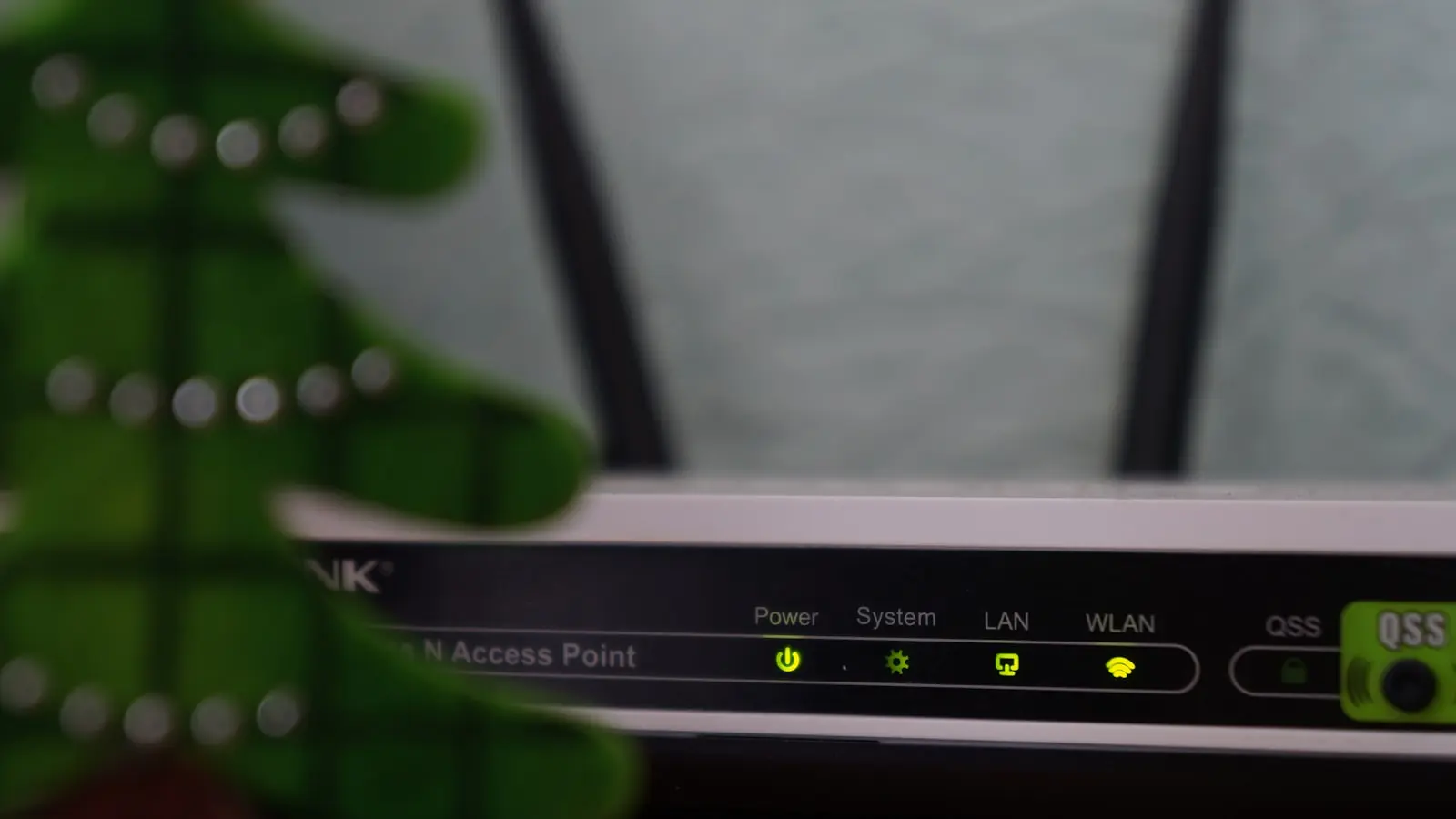
Smart home devices losing Wi-Fi usually points to one of a few causes: unstable power, weak signal at the device, incompatible Wi-Fi settings, router or mesh behavior, or a device-specific fault. The fastest fix is rarely resetting everything. First identify whether one device, several smart devices, or the whole network is failing, then make one reversible change at a time.
Phones and laptops staying online do not prove that a smart plug, camera, or sensor has a reliable connection. Many IoT devices have smaller antennas, fixed installation locations, and limited support for newer Wi-Fi features. A network that feels stable on a phone may still be marginal for a camera outside, a plug behind furniture, or a sensor in a utility room.
Key Takeaways
- Start with the scope of the problem: one offline device usually needs a device-level check, while several failing together often points to the network.
- Confirm power and signal at the device’s exact location before changing router settings or re-pairing anything.
- Many smart devices need 2.4 GHz Wi-Fi and may struggle with band steering, newer security modes, hidden networks, or mesh roaming.
- Restart equipment in order, update firmware, and check isolation settings before using a factory reset.
- A dedicated IoT network can improve management and separation, but excessive isolation can break local control and device discovery.
First, identify what is actually failing
Begin with the scope of the outage. If one smart light or smart plug is offline while everything else works, suspect its power source, signal, compatibility, saved Wi-Fi credentials, or hardware. If several smart devices disappear together while phones remain connected, investigate the 2.4 GHz network, router settings, mesh behavior, or router capacity.
If phones, computers, and smart devices all lose connection, the issue is more likely with the internet service, modem, router, or mesh system. Check whether wired devices work, if available, and whether the router reports an active internet connection. A Wi-Fi icon means a device is connected to the router; it does not confirm that the router can reach the internet.
Check the affected device before changing network settings. Confirm it has power, inspect its status light using the manufacturer’s guidance, and test the outlet if it is a smart plug. For battery-powered sensors, check battery level and seating. Stop and seek qualified help if you find damaged wiring, unusual heat, moisture intrusion, or a loose electrical connection.
Also separate an app or cloud problem from a local Wi-Fi failure. A device can appear offline in an app because of a cloud-service interruption, an expired account session, or an app issue even when its local connection is intact. Check app notices or the manufacturer’s status information before reconfiguring the network, especially if remote control fails while local functions still work.
Keep a short record of the device name, room, approximate outage time, and any error message. Patterns matter. A camera that drops at a particular time may have a location-specific signal issue, while several devices failing after a mesh update suggests a network-wide change.
Use the lowest-risk restart and update sequence
Before resetting a device, use a controlled restart sequence. First confirm that your internet service is working. If the modem, router, or mesh system needs a restart, restart the modem first and wait for it to reconnect. Then restart the router or primary mesh unit, allow Wi-Fi to stabilize, restart any smart-home hub, and finally restart or power-cycle the affected device.
This order prevents a smart device from repeatedly trying to join a network that is still starting up. Avoid unplugging every smart device at once. A large group of reconnecting devices can obscure the cause and may briefly add load to a modest router.
Once the network is stable, power-cycle only the affected device. For a smart camera, use its normal restart option if one is available, or disconnect power briefly only if that is safe and supported. If a smart plug is offline, verify that the outlet is live and follow the product’s status-light guidance before assuming Wi-Fi is the cause.
Check for updates after the restart. Router, mesh-node, hub, and device firmware can affect stability and compatibility. Install updates through official apps or administration pages, but avoid making several unrelated changes at once. If the issue began immediately after an update, note the timing and review the relevant support guidance before resetting hardware or changing multiple settings.
Fix Wi-Fi settings that affect 2.4 GHz smart devices
Many smart lights, plugs, cameras, and sensors support only 2.4 GHz Wi-Fi. This band generally reaches farther through walls and obstacles than 5 GHz or 6 GHz Wi-Fi, although it can also be more congested. Do not assume every IoT product has the same requirements; check the model’s official specifications for supported bands, security modes, and setup limitations.
A common setup problem occurs when a phone uses 5 GHz while the smart device supports only 2.4 GHz. Some routers combine both bands under one network name and automatically steer devices between them. This often works well for phones and laptops, but some 2.4 GHz smart devices struggle during setup or when reconnecting after an interruption.
As a targeted test, create a separate name for the 2.4 GHz network if your router supports it. Connect only the affected device to that compatible network and see whether it remains stable. You can also temporarily disable band steering, sometimes called Smart Connect, while pairing the device. Restore your usual settings afterward if the device works reliably; permanent changes should address a demonstrated compatibility issue rather than guesswork.
Other setup obstacles include hidden network names, captive portals that require a web sign-in, and unusual settings unsupported by the device. Older smart-home hardware is often easier to connect to a standard home network with a visible SSID than to a highly customized network.
Review security settings carefully. Use the strongest Wi-Fi security mode supported by both the router and the specific device. Some older devices may not connect under newer-only security configurations, but that is not a reason to disable Wi-Fi security or weaken the whole home network. If a compatibility adjustment is unavoidable, keep it as narrow as possible and consider replacing a device that requires an unreasonably weak configuration.
Test signal, mesh behavior, and local access
Test Wi-Fi at the device’s exact installation point, not just near the router or from another room. Use a phone as a comparison and look for a stable connection at the camera, plug, sensor, or light location. Treat this as an indicator rather than proof: phones often have better antennas and more capable radios than small IoT devices.
Look for physical causes of weak or inconsistent signal. Dense walls, metal cabinets, electrical panels, mirrors, utility rooms, outdoor enclosures, appliances, and water-heavy areas can make a location difficult to serve. Moving a mesh node, router, or device slightly may help, but avoid placing networking equipment in enclosed cabinets or against large metal objects.
Mesh Wi-Fi IoT issues often appear near the boundary between two nodes. A stationary device may connect to one node during setup, then behave poorly when client steering or fast-roaming features try to move it. Check whether outages began after adding, moving, or updating mesh nodes. Reviewing node placement, mesh firmware, client steering, and fast-roaming options can be more useful than repeatedly re-pairing the device.
Inspect network isolation as well. Guest networks often block devices from communicating with phones, hubs, or other local controllers. An IoT network or VLAN can provide useful separation, but client isolation can prevent discovery, casting, local video access, or hub-based control. If a smart camera will not reconnect to Wi-Fi, determine whether it lacks signal, cannot reach its cloud service, or is connected to an isolated network before erasing its settings.
If devices went offline after a router replacement, they may still be looking for the old network name and password. Reusing the previous credentials on the new router can reduce reconfiguration work when it is appropriate and secure to do so. Otherwise, update devices individually instead of resetting the whole home at once.
Escalate with capacity checks and targeted re-pairing
When multiple devices disconnect during busy periods, inspect the router’s connected-device list, logs, and DHCP settings if those tools are available. DHCP is the service that gives each device a local network address. A too-small address pool, address conflicts, or a router struggling with many clients can create erratic behavior that resembles a device defect.
There is no universal device limit because router hardware, traffic patterns, and configuration differ. Still, if connected devices regularly disappear in batches, the router may need vendor-specific troubleshooting, a firmware update, or replacement. Rebooting individual plugs and lights will not resolve a recurring router-capacity problem.
Re-pair a device only after checking its power, signal, supported Wi-Fi band, security compatibility, and isolation settings. Targeted re-pairing makes sense when one device has lost its saved credentials or fails after a network-name change. It is less useful when several devices show the same failure pattern.
Use a factory reset as the final device-specific step. It may erase Wi-Fi credentials, schedules, automations, camera settings, recordings stored on the device, or integrations with a hub or voice assistant. Record important settings first and follow the manufacturer’s reset instructions.
When a dedicated IoT network makes sense
A dedicated IoT network can make sense in homes with many smart devices, older devices with limited compatibility, or a need to separate smart-home traffic from computers and phones. It can simplify troubleshooting because 2.4 GHz smart devices have a clear network to join, and segmentation can limit the reach of a compromised IoT device.
The trade-off is usability. If the IoT network is too isolated, a phone, hub, speaker, or local controller may no longer discover or control devices as intended. Configure separation deliberately: protect router administration with a strong, unique password, keep firmware current, and allow only the local access required for the features you use.
Seek router or device support when the entire network repeatedly drops, power problems are unexplained, a device fails beside the router on a known-compatible network, or you notice unexpected account changes and unfamiliar devices. Continuing to reset hardware at that point can erase useful clues without fixing the cause.
FAQ
Why does my smart plug keep going offline when my phone stays connected?
Your phone may have a stronger antenna, use a different Wi-Fi band, or connect to a closer mesh node. Check the plug’s power and outlet first, then test signal at that outlet, confirm the plug supports your Wi-Fi security settings, and try a separate 2.4 GHz SSID if needed.
How do I reconnect a smart camera to Wi-Fi without factory-resetting it?
Restart the network in order, then restart the camera and check signal at its installation point. Confirm that it is on a compatible network and not blocked by guest-network or client-isolation settings. Re-pair it only if those checks fail; reserve a factory reset for a camera that cannot recover through the manufacturer’s normal process.
Should I create a separate 2.4 GHz or dedicated IoT Wi-Fi network?
A separate 2.4 GHz name is a useful compatibility test for devices that struggle with band steering. A dedicated IoT network is more useful when you manage many devices or need stronger separation. In either case, keep security enabled and verify that your hub, phone, and local-control features can still communicate where needed.