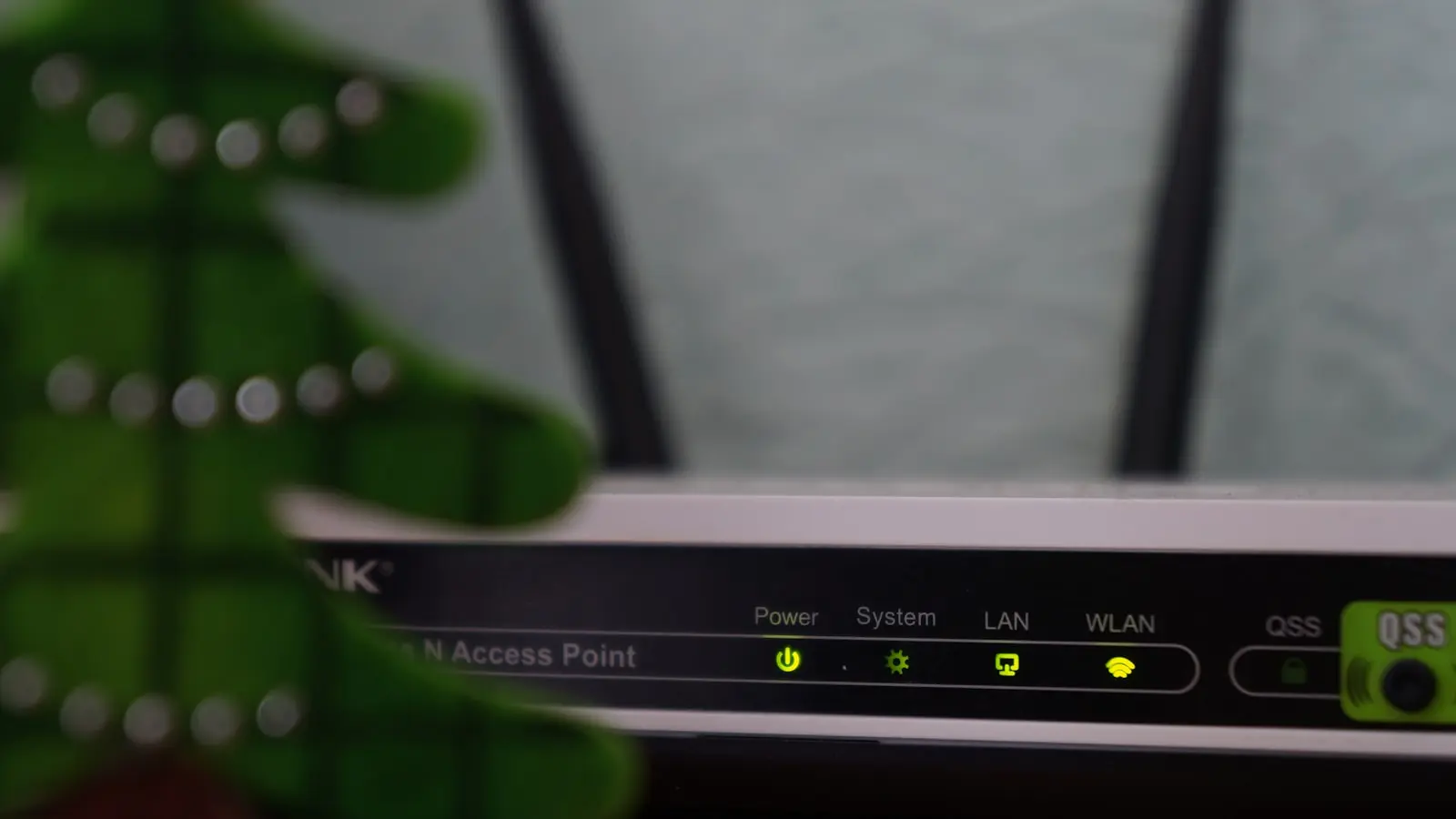
A smart home hub that keeps dropping Wi-Fi can stall automations, mark sensors offline, and turn simple routines into manual chores. The fix starts by identifying whether the hub lost internet access, lost its local Wi-Fi link, or is being disrupted by router settings and physical interference.
Key Takeaways
- A hub can be online locally but appear offline in its app if the cloud status check fails.
- Most smart hubs rely on 2.4 GHz Wi-Fi, where congestion and interference are common.
- Band steering, AP/client isolation, short DHCP leases, and power-save modes can silently kick a hub offline.
- Placement and channel selection often fix repeated disconnects more reliably than resetting the hub.
- Zigbee and Thread add local mesh resilience but still depend on the hub’s internet connection.
1. First, Check Whether the Hub Is Losing Internet or Dropping the Local Network
Before blaming the hub, separate the two possible failure layers: losing the Wi-Fi link itself or losing internet access. The hub can still be on your local network while the app shows it offline because the cloud status check failed.
Open your router’s connected-device list and look for the hub’s IP address. Then ping that address from a phone or computer on the same network. If the pings succeed, the Wi-Fi link is alive and the problem may be in the hub app, the cloud service, or the router’s internet path. If the hub disappears from the client list, the Wi-Fi connection is dropping, so focus on signal strength, interference, and router settings.
Log every disconnect with a timestamp for at least 48 hours. A pattern where the hub goes offline at the same time each day points to something scheduled in the environment, not random hub failure. Resist the urge to reboot the router or hub first, because a reboot can temporarily hide the root cause and erase the pattern you need to diagnose.
2. Why 2.4 GHz Is Both the Lifeline and the Weak Spot for Smart Home Hubs
Most smart hubs and sensors use 2.4 GHz Wi-Fi because that band travels farther and handles walls better than 5 GHz. The trade-off is that it is crowded and easily disturbed by other radios. In most regions, 2.4 GHz Wi-Fi has only three non-overlapping channels: 1, 6, and 11. If nearby networks are packed onto the same channel, retries and disconnects climb.
Use the router’s admin interface or a Wi-Fi analyzer app to see which channels are congested, then set the 2.4 GHz radio to the least-crowded of 1, 6, or 11. In dense neighborhoods, set the 2.4 GHz channel width to 20 MHz. A 40 MHz width can overlap with other networks and increase the chance of interference.
Do not force a 2.4 GHz-only hub to connect to 5 GHz. If the hub is dual-band, create a dedicated 2.4 GHz SSID or disable band steering for that device. The best router settings for smart home stability usually keep simple IoT devices on a clean 2.4 GHz path.
3. Router Settings That Silently Kick Smart Hubs Offline
Band steering, sometimes called smart connect, can push a dual-band hub toward a weaker 5 GHz signal or bounce it between bands. Check whether your router has this enabled and turn it off for the hub, or use a separate SSID for the hub’s band.
AP/client isolation is another common culprit. This security feature prevents devices from talking to each other on the same network, and it can stop your phone from reaching the hub. Routers vary, but the hub needs to communicate with other clients on the same network segment.
A short DHCP lease time can also force the hub to renew its IP address and reconnect repeatedly. If the hub keeps dropping its address, set a longer lease or assign a DHCP reservation. That fix only helps when the issue is IP address loss, not weak signal or interference.
Other router features can affect idle smart hubs: Wi-Fi power save, green AP mode, and WMM power save may let the hub’s radio fall asleep. Airtime fairness and beamforming can cause compatibility problems with older hub radios. Toggle these features off and test the connection for a few days. Update router firmware only after checking release notes for known 2.4 GHz or IoT fixes; a firmware update is not a guarantee.
4. Interference and Hub Placement: The Physical Fixes That Actually Work
Move the hub to an open, central location away from metal shelves, concrete walls, foil-backed insulation, fish tanks, and large appliances. Do not put it on top of the router, inside an enclosed cabinet, or directly behind a television. Heat and electrical noise can degrade radio performance just as much as distance.
Microwave ovens, baby monitors, and older cordless phones share the 2.4 GHz band. If disconnects happen when one of those devices is active, change the Wi-Fi channel or move the hub. A same-time-every-day disconnect may match a neighbor’s network activity, an appliance cycle, or your router’s nightly scan, so observation matters.
If the hub sits in a weak-signal area, add a mesh node or access point with a strong backhaul. A poorly placed range extender can create more problems because it re-broadcasts a weaker connection. Use the hub app or router UI to check signal strength. General wireless guidance treats an RSSI above -67 dBm as good for smart home devices, while worse than -67 dBm is marginal.
5. Should You Switch the Hub From Wi-Fi to Zigbee or Thread?
Zigbee and Thread are low-power mesh protocols that can keep local automations running more independently of your Wi-Fi network. That does not mean they fix internet outages. The hub still needs a stable uplink for cloud access and remote control.
Both Zigbee and Thread share the 2.4 GHz band with Wi-Fi, so they are not immune to congestion. The difference is that a mesh can route around a single blocked path, while a Wi-Fi hub usually depends on one link to the router. Thread is IP-based and appears in Matter setups, but it still creates a separate local network path for sensors and lights.
Use this decision criterion: if you have already optimized router settings and placement and the hub still drops when many Wi-Fi clients are active, a Zigbee or Thread hub may help. If the real problem is the internet connection itself, changing protocols will not help.
Smart Home Hub WiFi Disconnecting FAQ
Why does my smart hub keep disconnecting even when the router is working?
The hub’s status depends on both the local Wi-Fi link and the internet path. Check the router’s client list and ping the hub’s local IP address. If the hub responds, the Wi-Fi link is alive and the problem may be in the app, cloud service, or router’s internet connection.
Will changing the DHCP lease time fix my smart hub disconnects?
A longer lease time or DHCP reservation only helps if the hub is losing its IP address. It cannot fix weak signal, interference, or band steering. First confirm from the router’s client list that the hub is actually disappearing from the network.
Is a Zigbee or Thread hub more reliable than a Wi-Fi hub?
These protocols add local mesh resilience, but the hub still requires a stable uplink for cloud and remote features. Both use the 2.4 GHz band and can experience interference, so treat protocol choice as one part of the solution rather than a guaranteed fix.