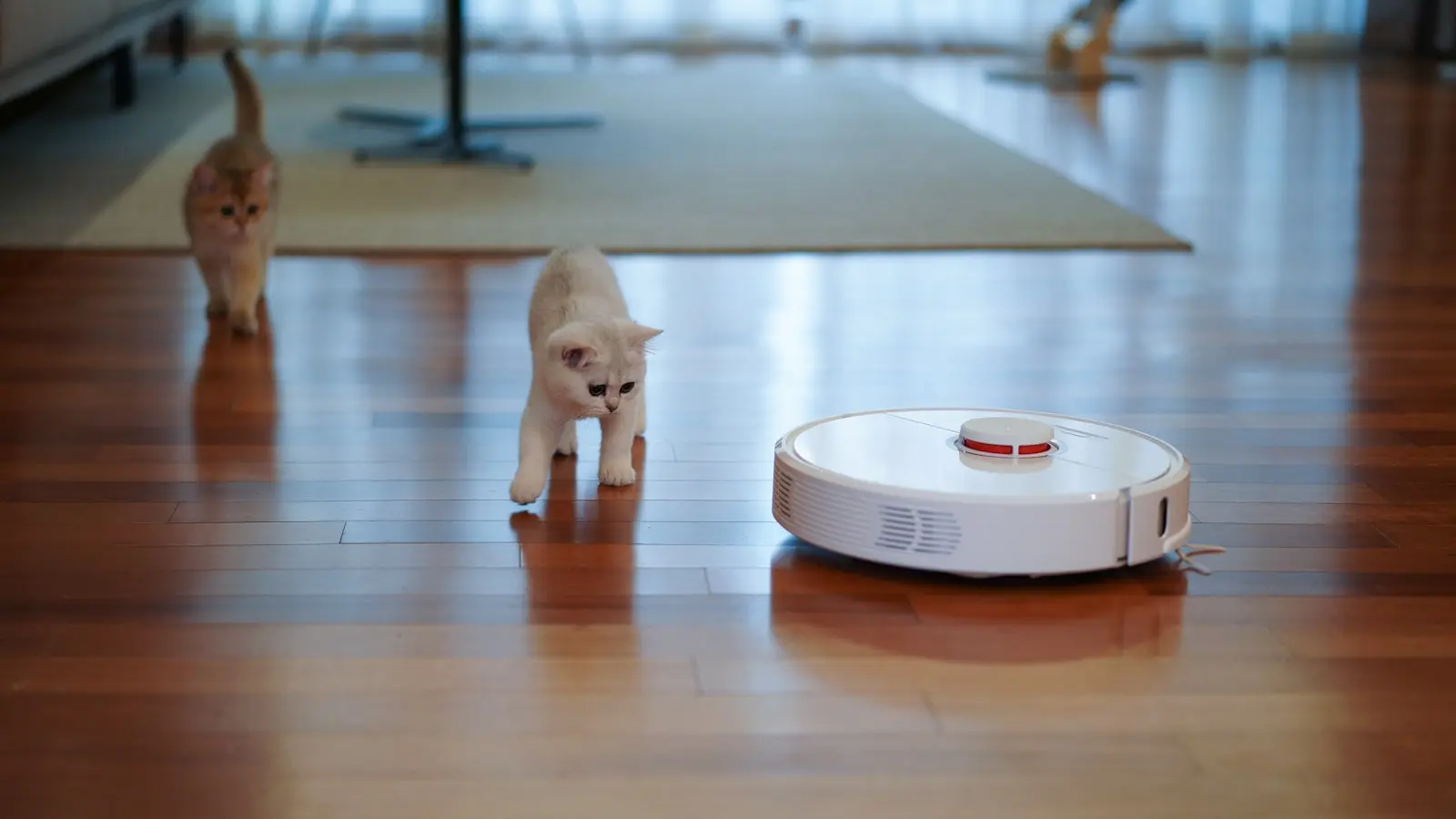
If your robot vacuum misses one room repeatedly, do not factory-reset it first. The most useful robot vacuum navigation fix is to determine whether it cannot enter the room, is blocked by an app setting, or is excluding the area because of its map, battery state, or sensors.
Start with a repeatable test: fully open the door, clear the entrance, begin a whole-home clean from the normal dock, and watch what happens at the doorway. Then compare that result with a direct room-cleaning command and, if your manual permits it, a test started inside the missed room.
Key Takeaways
- A skipped room is often caused by a blocked route, threshold, rug edge, or app restriction rather than a failed robot.
- If direct room cleaning works but whole-home cleaning skips the room, inspect map boundaries, selected rooms, schedules, and no-go zones first.
- If the robot turns away at the doorway in every mode, focus on physical access, traction, sensors, and wheel condition.
- Preserve a usable map and try edits or updates before remapping; use a factory reset only as a last software step.
Confirm Whether It Cannot Enter or Is Choosing Not to Clean
Check the route before changing app settings. What looks like a robot vacuum map problem may be a doorway the robot now treats as inaccessible.
Make sure the door opens wide enough for the robot and its side brush to pass and turn safely. Inspect for raised thresholds, loose rug edges, curled mats, cables, pet items, shoes, or furniture that has shifted since the map was created.
Thresholds can create repeatable failures. A robot may cross one transition in your home but struggle with another that is taller, sharper, uneven, slippery, or blocked by a rug. Threshold-climbing ability varies by model, and loss of traction can make a robot retreat even when the step appears manageable.
Some navigation systems can also react poorly to very dark flooring, reflective surfaces, low mirrors, or tight entrances. These are not universal causes, but they are worth testing if the robot pauses, circles, or backs away at the same point.
Try two comparisons:
- Run a whole-home cleaning cycle from the dock and observe the room entrance.
- Run a direct cleaning cycle for the missed room, then compare the result.
If the robot cleans normally when sent directly to the room but skips it during a full run, the room is likely reachable. Prioritize map settings and route planning. If it cannot enter in either test, inspect the doorway, floor transition, wheels, and sensors before remapping.
Do not force a robot over a threshold or disable safety sensors. If the room entrance exceeds the device’s capabilities, that is a compatibility limitation rather than a reason to modify the vacuum.
Check the App Map, Room Assignment, and Cleaning Rules
If the robot can enter the room, inspect the active map in the app. Confirm that the selected home and floor are correct, particularly in homes with multiple levels, duplicate maps, or maps created after a major furniture change.
A room may appear on the map but still be configured incorrectly. It could be merged with another area, split by a bad boundary, mislabeled, omitted from a saved routine, or included within a larger zone. Zoom in on the doorway and perimeter instead of relying only on the full-map view.
Review robot vacuum no-go zones, virtual walls, keep-out areas, and mop-restricted zones. A restriction does not need to cover the entire room to block access. A narrow zone over the doorway or too close to the entrance can make the robot treat the room as unreachable.
Also check schedules, saved favorites, room-selection routines, and cleaning modes. A run labeled as whole-home cleaning may actually use a saved room list that excludes one area. This can happen after map edits, room renaming, or changes to a cleaning routine.
For multi-level homes, verify the selected floor before making major changes. A valid-looking map for the wrong floor can cause the robot to avoid areas that do not match its expected layout.
Robot vacuum Wi-Fi mapping is often misunderstood. Wi-Fi commonly affects app synchronization, map access, and firmware updates, while many robots handle at least some navigation onboard. A connection issue may leave you viewing an older map or unable to save edits, but it is not automatic proof that Wi-Fi caused the skipped room.
Rule Out Sensors, Wheels, and Power Problems
Robot vacuum sensor cleaning is worth trying when the behavior changed gradually or the device hesitates in areas it previously handled well. It can help when dirt affects detection or positioning, but it will not correct a blocked doorway, inaccurate room boundary, or no-go zone.
Follow your model’s manual for approved cleaning steps. Depending on the design, relevant parts may include cliff sensors underneath the robot, wall or obstacle sensors, camera lenses, laser-navigation windows, and charging contacts. Avoid liquids, abrasive materials, or disassembly unless the manufacturer specifically allows them.
With the robot powered off or handled as directed in its manual, inspect the wheels and brush area. Hair, thread, or compacted debris can limit wheel movement, reduce traction at a threshold, or cause the robot to veer away from a doorway. Look for visible wheel damage and rugs that catch the brush at the entrance.
Clean the charging contacts on the robot and dock, then allow a full charge before repeating the test. Battery level matters most when the missed room is late in the cleaning route. Some models return to charge before completing every area, while others resume later; the exact behavior depends on the model and settings.
Watch for a consistent pattern. Repeated retreating at a threshold points toward access, traction, or obstacle detection. Unusual turning in open space can indicate a wheel or sensor issue. Note app alerts and exact error messages for later troubleshooting or support.
Use a Low-Risk Robot Vacuum Navigation Fix Sequence
Use tests that preserve the current map before deleting anything. The goal is to isolate the cause, not erase useful evidence.
First, select the missed room directly in the app and run a one-room cleaning cycle. Then run a whole-home cycle under the same physical conditions, with the doorway clear and the robot sufficiently charged.
If direct room cleaning works but whole-home cleaning skips the room, prioritize software and route decisions. Check room boundaries, selected areas, schedules, cleaning order, no-go zones, floor selection, and battery-management behavior. The robot has demonstrated that it can clean the room; it is simply not including it in the larger plan.
If the robot cannot enter during either test, focus on physical access and hardware. Recheck the threshold, rug, floor surface, sensors, wheels, and objects that may move into the path. A new map is unlikely to solve a transition the robot cannot cross consistently.
Before remapping, check the manufacturer app for firmware updates and map-management tools. Available options vary by brand, model, and software version. Try the least disruptive correction first: adjust a room boundary, remove an incorrect restriction, merge or split rooms, or recreate only the affected room if the app supports it.
Preserve the working map if the app allows duplication, backup, or editing. Remapping can help after substantial layout changes, a failed mapping run, or persistent boundary errors. It can also erase room names, routines, restrictions, and preferences that took time to set up.
Remap only after confirming physical access and app restrictions. Keep doors open, floors clear, and the dock in its usual position during the process. Use a factory reset only when the manufacturer recommends it or when updates, map edits, and remapping have failed. A reset may erase maps, Wi-Fi details, schedules, and connected-home settings.
Know When It Is a Limitation or a Support Case
Contact manufacturer support when the robot consistently avoids an accessible room after you have checked the route, cleaned approved sensors, updated the software, and remapped where appropriate. Escalate sooner if it reports repeated errors, fails to charge reliably, has damaged wheels or sensors, or changed behavior after a drop, spill, or impact.
Prepare clear details before contacting support: the model name, app and firmware versions, screenshots of the map and restrictions, photos of the doorway and threshold, error messages, and the results of one-room versus whole-home tests. “Turns away at the threshold every time” is more useful than “navigation is broken.”
Replacement should be the final step. First confirm whether the doorway, flooring, lighting, or layout falls outside the documented capabilities of the current model. If the room is accessible and the robot still fails after these checks, service or replacement becomes more reasonable.
FAQ
Why does my robot vacuum clean a room manually but skip it during whole-home cleaning?
That usually means the room is physically reachable but excluded by a map boundary, saved routine, room selection, no-go zone, wrong floor map, or route-planning decision. Check app settings before remapping.
Can a no-go zone block entry even if it does not cover the entire room?
Yes. A no-go zone, virtual wall, or mop restriction near or across the doorway can prevent the robot from finding an allowed route into the room. Inspect the entrance closely on the map.
Should I remap or factory-reset my robot vacuum when it keeps missing one room?
Try map edits, restriction checks, firmware updates, sensor cleaning, and one-room versus whole-home tests first. Remap when the map appears inaccurate after physical access is confirmed. Factory-reset only as a last resort because it can erase settings and will not fix an impassable doorway or threshold.