
Modern high-performance gaming workstations are marvels of silicon engineering, yet they are fragile ecosystems that demand perfect thermal and electrical balance. When a system repeatedly drops to the desktop or triggers a hard shutdown during a game, it is rarely an act of chance. It is a system-level defense mechanism. The most frequent culprit behind these crashes is thermal throttling. When the CPU or GPU cross the 90°C threshold, internal safety protocols trigger an emergency shutdown to prevent permanent physical damage to the architecture. (It is a blunt instrument, but effective.)
Identifying Thermal Bottlenecks
Heat accumulation is the silent killer of performance. Hardware manufacturers design these chips to operate at high clock speeds, but they rely entirely on the chassis airflow and cooler mounting pressure to maintain those states. Diagnostic tools like HWMonitor are essential for observing the reality behind the frame rates. Users should look for “Tjunction” values on CPUs or “Hot Spot” temperatures on GPUs. If the numbers consistently hover near the 90°C to 95°C range, the system is not failing because of a software bug; it is failing because of physics. Common solutions involve a systematic audit of the cooling setup:
- Dust accumulation: Even thin layers of dust on heatsink fins act as an insulator, reducing heat dissipation efficiency.
- Thermal paste degradation: Over an 18-month cycle, the thermal interface material often dries or pumps out, losing its ability to bridge the microscopic gaps between the die and the heatsink.
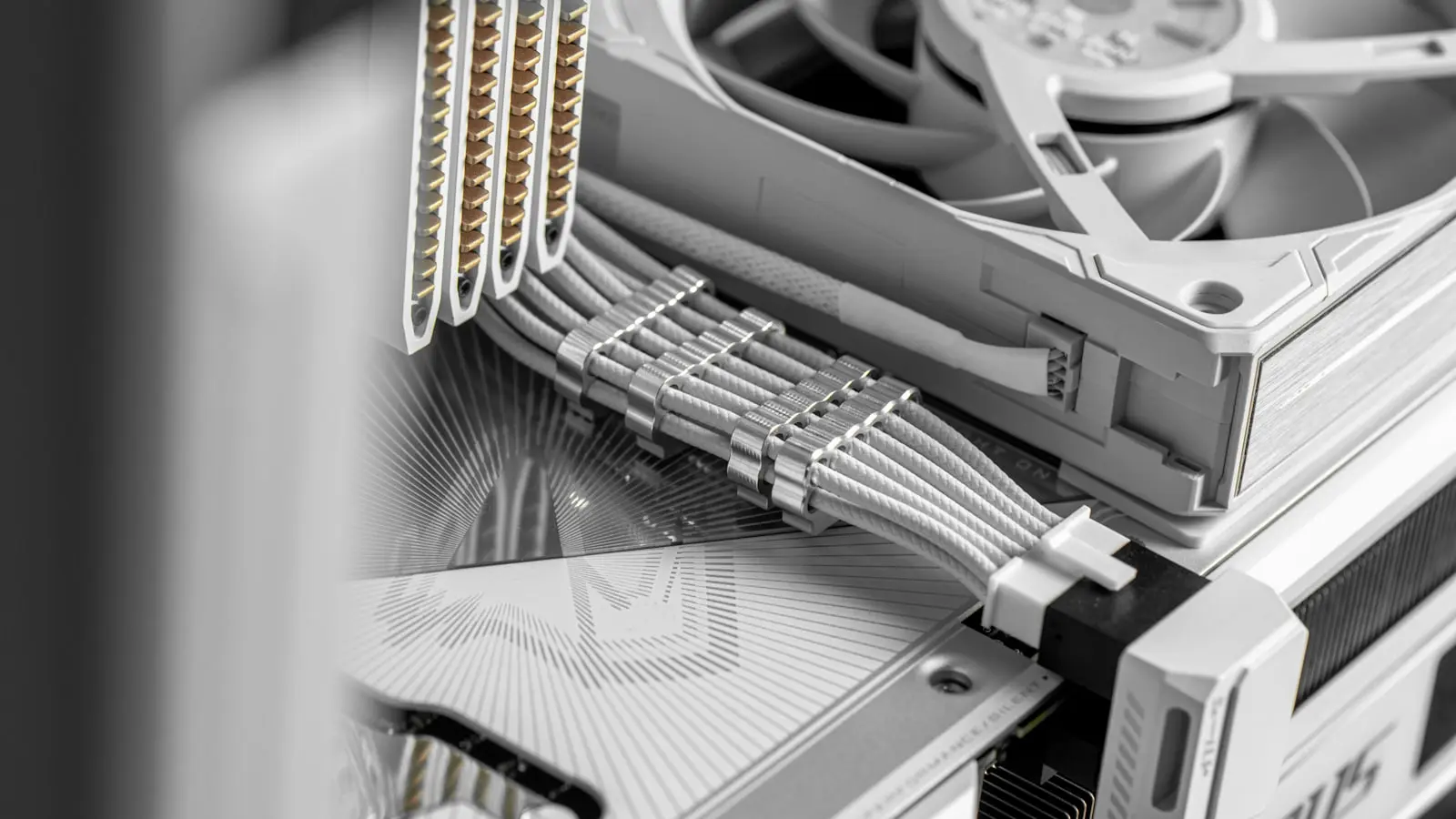
- Airflow impedance: Poor cable management or a chassis with choked intake vents can create heat pockets that recycled hot air cannot escape.
Power Delivery and Electrical Stability
If temperatures remain within acceptable parameters, the focus shifts to the power delivery subsystem. An insufficient power supply unit (PSU) is a common oversight in high-end builds. When a GPU experiences a “transient spike”—a millisecond-long surge in power draw—a low-capacity or failing PSU may fail to provide stable voltage. This results in the system cutting power instantly to protect the motherboard. (The hardware acts faster than the user can blink.) Checking the BIOS for unstable XMP profiles is equally critical. While XMP (Extreme Memory Profile) allows RAM to run at advertised speeds, it is technically an overclock. An unstable XMP profile can cause memory controller errors that manifest as random freezes rather than clean shutdowns. Resetting to default JEDEC speeds is the primary way to verify if the memory configuration is the source of the instability.
Software and Driver Optimization
Hardware is only as reliable as the instructions it receives. Outdated graphics drivers are a frequent source of “driver timeouts,” where the GPU loses communication with the OS. A clean installation using a tool like DDU (Display Driver Uninstaller) ensures that legacy registry entries do not interfere with modern API calls. Without a stable foundation of drivers, even the most robust hardware will eventually succumb to kernel-level errors under heavy load. The goal is to isolate variables. By running benchmarks like Cinebench for CPU stress or FurMark for GPU load, users can force the hardware to replicate the conditions of a crash. If the system stays stable during these controlled tests but fails during gaming, the issue is likely a specific software conflict or a secondary peripheral driver. (Most users skip this step, but it saves hours of trial and error.)
Long-Term Maintenance Strategy
Performance decay is inevitable if the system is left unmaintained. Industry analysts note that cooling efficiency often drops significantly after 18 months of intensive operation due to the physical degradation of components and the buildup of particulates. Maintaining a high-performance workstation is not a one-time setup; it is a cycle of audit and optimization. By focusing on thermal headroom, electrical stability, and driver hygiene, users can move past the frustration of random crashes and restore the workstation to its intended output.